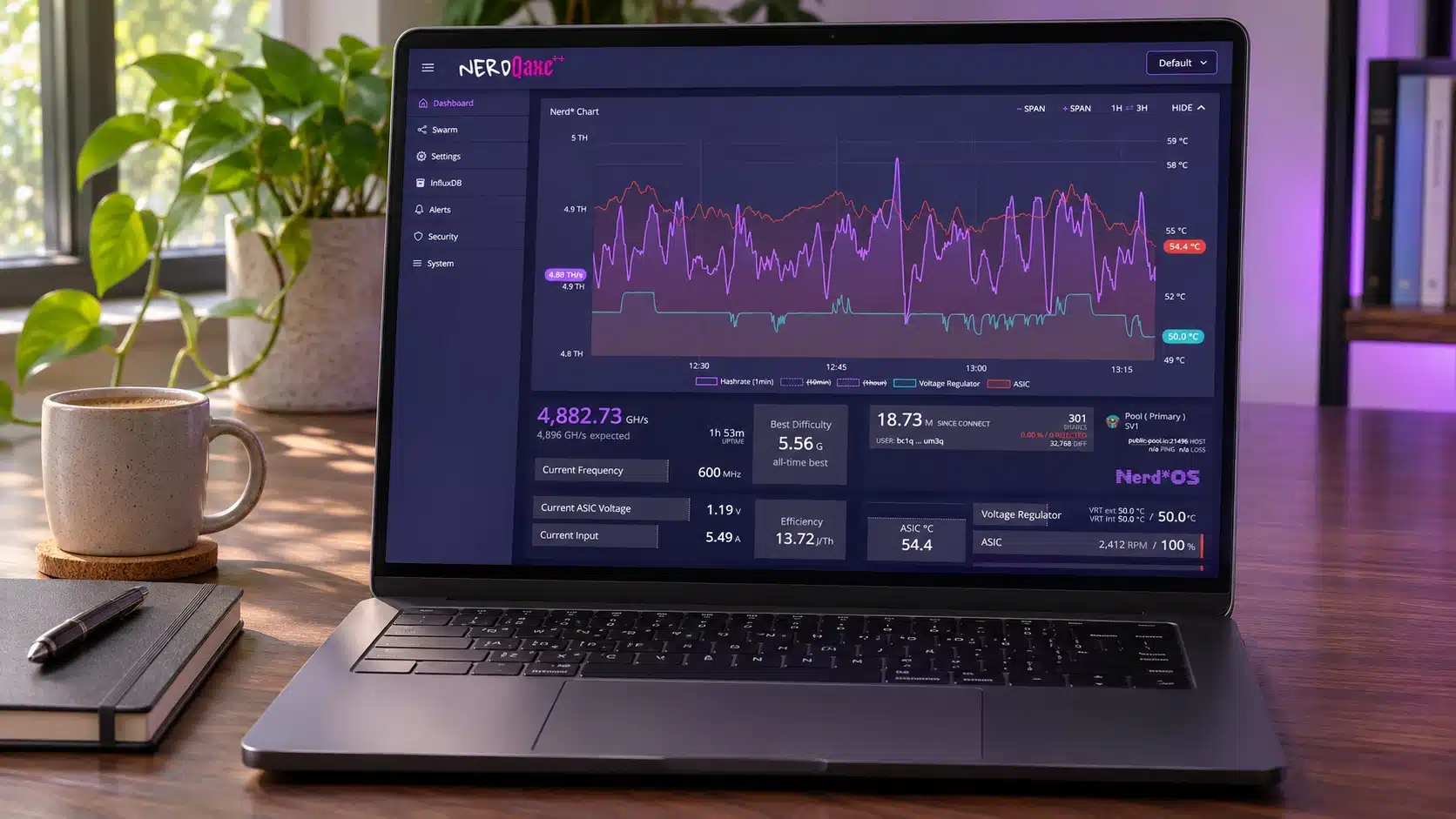
Nerd*OS lets you configure, monitor, and manage a supported Nerdaxe-family miner from a browser on your local network. It controls the pool connection, ASIC operating settings, cooling, and device interface. This Nerd*OS guide explains what the controls change, how to interpret the readings, and how the firmware handles mining work behind the scenes.
Part 1 covers daily operation, including pool settings, hashrate and shares, power readings, fan control, security, monitoring, and updates. Part 2 follows the technical path from startup and pool jobs to ASIC communication, share validation, configuration storage, and firmware updates. The reference release is Nerd*OS v1.1.1; the supported-model table identifies its official hardware targets.
The guide applies across supported Nerdaxe-family models running Nerd*OS. Screenshots use a NerdQaxe++ Revision 7 as the example, and hardware-dependent controls are identified where they appear. Need to connect a new miner first? Follow our step-by-step NerdQaxe++ setup guide before using this operating reference.
Quick answer: what can you do with Nerd*OS?
- Configure mining: Enter pool and worker details, choose supported connection protocols, and configure failover or dual-pool operation.
- Check useful work: Read hashrate averages, accepted and rejected shares, difficulty records, and connection status together to assess operation.
- Manage power and cooling: Adjust supported ASIC frequency, core voltage, and fan controls, while tracking device-reported DC power and temperatures.
- Customize and monitor: Configure supported display options, view compatible miners through Swarm, and optionally send measurements to InfluxDB or events to webhook endpoints.
- Protect management access: Configure the available one-time-password and trusted-browser controls, with endpoint-specific limits explained in the security and API sections.
- Maintain and diagnose: Inspect system information and logs, apply the correct update files, and understand which settings require Save followed by Restart.
Part 1: Operating your miner with Nerd*OS
What is Nerd*OS?
Nerd*OS, also written NerdOS, is the open-source firmware and browser interface for supported Nerdaxe-family Bitcoin ASIC miners. It runs on the miner’s ESP32-S3 controller, coordinates the dedicated SHA-256 ASICs, connects to mining pools, manages power and cooling, and exposes monitoring and configuration through a local web interface.
The project’s source repository is ESP-Miner-NerdQAxePlus. Its code builds on the ESP-Miner and NerdAxe lineage. The same software platform supports single-chip and multi-chip targets, while board-specific drivers define the ASIC count, regulator, fans, display, defaults, and accessories.
This guide follows the same two-part approach as our AxeOS guide: Part 1 explains the screens and controls; Part 2 explains the firmware implementation. The screenshots use a NerdQaxe++ as a worked example. The guide applies across the supported family, with model-dependent details identified where they matter.
Which Nerdaxe models run Nerd*OS?
The table below includes all 12 factory-image targets published for Nerd*OS v1.1.1. ASIC type and count are checked against the corresponding tagged board classes, including inherited values. It is a firmware compatibility reference, rather than a list of only the models sold by Solo Satoshi.
| Model or family | ASIC configuration and release target |
|---|---|
| NerdAxe | 1 × BM1366. Release target: NerdAxe. Board implementation. |
| NerdAxe Gamma | 1 × BM1370. Release target: NerdAxeGamma. Board implementation. |
| NerdAxe Gaia | 1 × BM1373. Release target: NerdAxeGaia. Board implementation. |
| NerdQAxe+ | 4 × BM1368. Release target: NerdQAxe+. Board implementation. |
| NerdQAxe++ | 4 × BM1370. Release target: NerdQAxe++. Board implementation. |
| NerdHaxe Gamma | 6 × BM1370. Release target: NerdHaxe-Gamma. Board implementation. |
| NerdOCTAXE+ | 8 × BM1368. Release target: NerdOCTAXE+. Board implementation. |
| NerdOCTAXE Gamma | 8 × BM1370. Release target: NerdOCTAXE-Gamma. Board implementation. |
| NerdEKO | 12 × BM1370. Release target: NerdEKO. Board implementation. |
| NerdQX | 4 × BM1370. Release target: NerdQX. Board implementation. |
| Q1370 | 4 × BM1370. Release target: Q1370. Board implementation. |
| Q1373 | 4 × BM1373. Release target: Q1373. Board implementation. |
Models, revisions, and retail names are different identifiers
A firmware target can cover more than one supported board revision. The NerdQAxe++ code, for example, contains a distinct Revision 7 regulator-detection/profile path within the same family target. A familiar family name is not enough to establish compatibility with an arbitrary modified board.
Cooling packages, cases, and seller-specific names can describe hardware variants without creating a separate upstream firmware target. Identify the actual board, ASICs, and supported target rather than choosing a binary only because its name resembles a retail listing. Confirm unusual variants with their hardware supplier and the relevant project documentation.
The same operating concepts apply across these targets, but a single-chip board need not expose the same fan channels, per-chip sensors, display layout, Ethernet options, or CAN controls as a larger miner. Follow the controls and board-specific defaults shown by your device.
Source: official v1.1.1 firmware assets and tagged board definitions. Newer targets should be checked against their own release instead of being inferred from this version’s table.
How to access Nerd*OS and apply settings
Open the miner’s local IP address in a browser on the same network. The miner’s display or your router’s connected-device list shows that address. During first-time setup, the temporary access point normally uses http://192.168.4.1; after joining your home Wi-Fi, use the address assigned by your router.
If you have not completed networking and pool setup, follow our NerdQaxe++ setup guide first. This article is the operating and technical reference for Nerdaxe-family miners running Nerd*OS after you can reach the interface.
Which devices and firmware does this guide cover?
This guide covers all supported Nerdaxe-family models running the open-source Nerd*OS firmware, including Nerdaxe, NerdQaxe++, and NerdOctaxe variants. The reference release is Nerd*OS v1.1.1. We inspected the actual interface on a NerdQaxe++ Revision 7 running a v1.1.1 development build. The installed build is visible in the System screenshot. Stable-release behavior was cross-checked against the v1.1.1 source and release notes. Controls can differ by build, board, display, and fitted accessories.
Use the complete supported-target table above to identify your model. A shared interface does not make firmware binaries interchangeable; choose the correct board target when updating.
Nerd*OS shares ESP-Miner ancestry with AxeOS, but its menus and supported boards differ. Use this guide for the Nerd*OS interface, rather than assuming an AxeOS screenshot or Bitaxe firmware file applies to your miner.
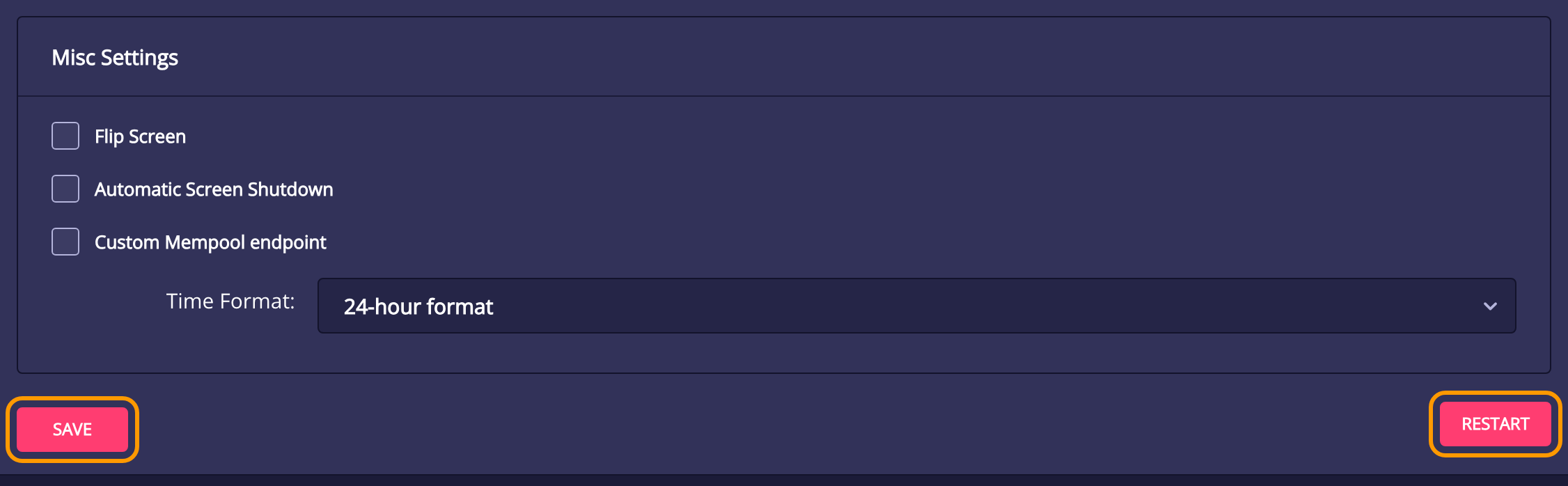
Save, Restart, and unsaved changes
- Save writes the settings in that form. Wait for the success notification. A validation error or failed request means you should correct the problem before continuing.
- Restart reboots the miner. It interrupts mining and briefly disconnects the browser. It does not save unsaved entries.
- For initial setup, use Save → Restart. For later changes, follow the form’s restart notice. Some settings apply at runtime; others are read during startup.
Settings, InfluxDB, Alerts, and display-alert controls have their own save actions. Saving one form does not automatically save a different page. A firmware update and an ordinary settings save are also separate operations.
How to use the screenshots
Interface screenshots come directly from our test miner at high resolution. Private network names, addresses, and credentials are replaced with examples. Some images preview alternate dropdown options without saving them. Their values explain the controls; they are not recommended tuning settings. Select a screenshot to view it at full resolution.
Dashboard: every main mining metric
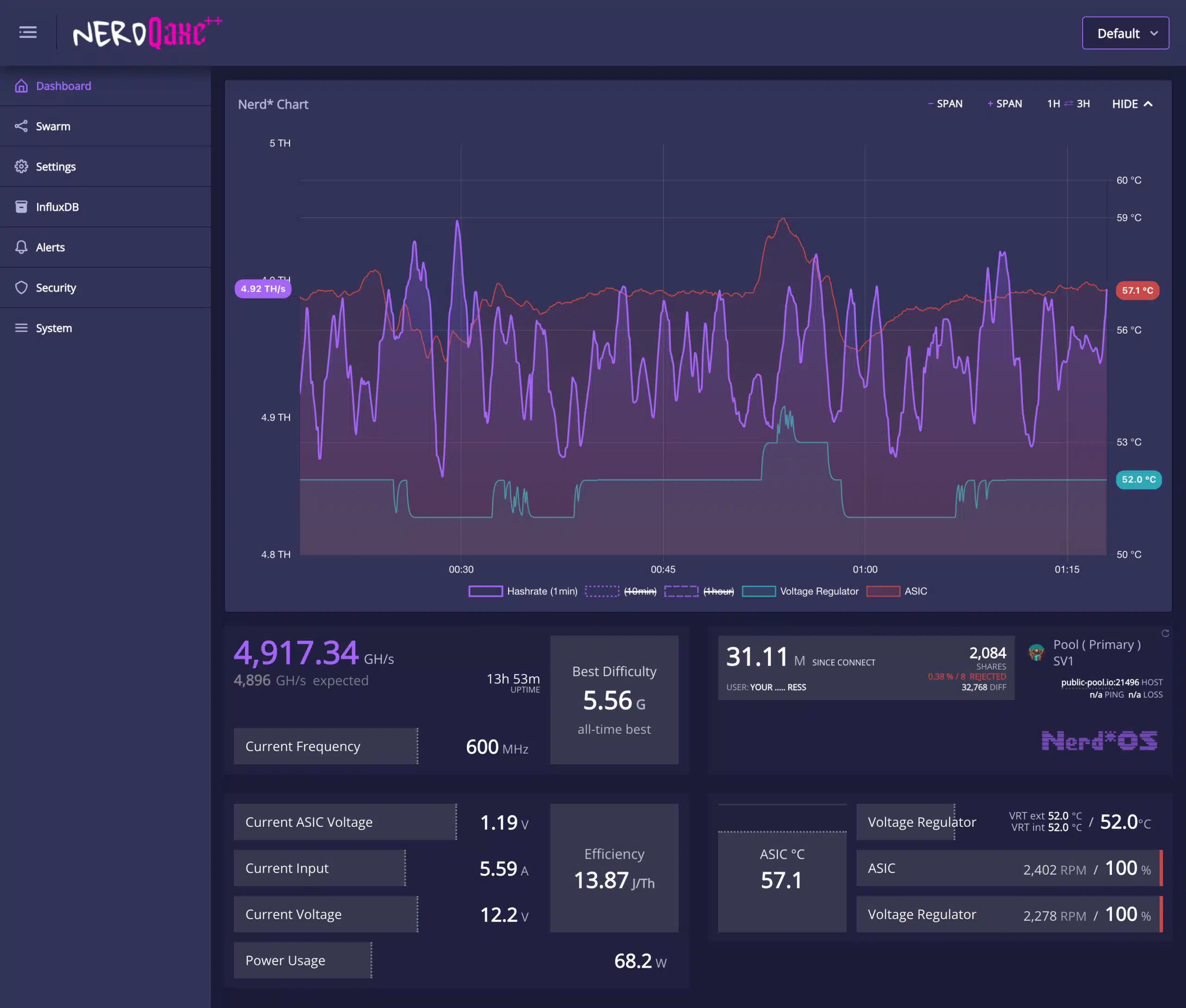
The Dashboard answers three practical questions: is the miner doing work, is the pool accepting it, and are power and cooling behaving as expected? Read these groups together. A high hashrate by itself does not establish correct payouts, and a Wi-Fi connection by itself does not establish a pool connection.
Hashrate, expected hashrate, frequency, and uptime
| Reading | What it means |
|---|---|
| Hashrate | The device-reported rate of SHA-256 mining work. GH/s means billions of hashes per second; 1,000 GH/s equals 1 TH/s. Short-term movement is expected, so use the longer averages and pool results before judging a trend. |
| Expected hashrate | A calculated reference based on the ASIC configuration and selected frequency. It is not a measurement, a guarantee, or a prediction of the next block. The source calculates it from frequency, ASIC count, and small-core count. |
| Current Frequency | The ASIC clock setting in MHz. Raising it changes operating demand; it does not make an individual hash more likely to win. |
| Uptime | Time since the device booted. A reset uptime can help correlate a restart with a power event, update, watchdog, or the reset reason shown under System. |
Accepted shares, rejected shares, and share difficulty
An accepted share is work the pool accepted at its assigned share target. It confirms successful submissions, not a Bitcoin payout. A rejected share was not accepted; read the pool’s rejection reason before blaming a particular component. Stale work, an invalid submission, and an unauthorized username require different checks.
Pool difficulty is the target used for ordinary share submissions. It differs from Bitcoin network difficulty. A pool that raises share difficulty can produce fewer submitted shares while the same miner keeps hashing at the same rate. Pool-side hashrate is estimated over time, so it can differ from the device’s short-term reading.
For the relationship between shares, variable difficulty, and blocks, read our Bitcoin mining shares guide. Do not expect a fixed share interval across different pools and difficulty settings.
Best difficulty: session versus all-time
Best difficulty records the highest-difficulty share the miner has found. The interface distinguishes a session or “since connect” value from an all-time best. A reconnect or session reset can change the session display without erasing every stored record. The exact scope is identified by the label next to the number.
A large best-difficulty value is not proof that a block was found. A valid block must meet the network target and be accepted by the network. See what best difficulty means for the distinction.
Pool cards, latency, and verification indicators
Pool cards identify the host, port, worker or username, connection state, assigned difficulty, and share statistics. Primary and fallback labels describe failover behavior; dual-pool mode can show two active pool sessions. Check which pool is actually active before interpreting its counters.
Ping and loss are network indicators when the selected pool and interface provide them. An unavailable reading is not automatically a failed Stratum connection. Compare the connection state and accepted-share counter, and use logs when the indicators disagree.
When coinbase verification is enabled, address colors and verification messages describe the template check. A green address indicates the relevant verification passed; an enforcement failure can block the pool. These checks are explained in the coinbase section below.
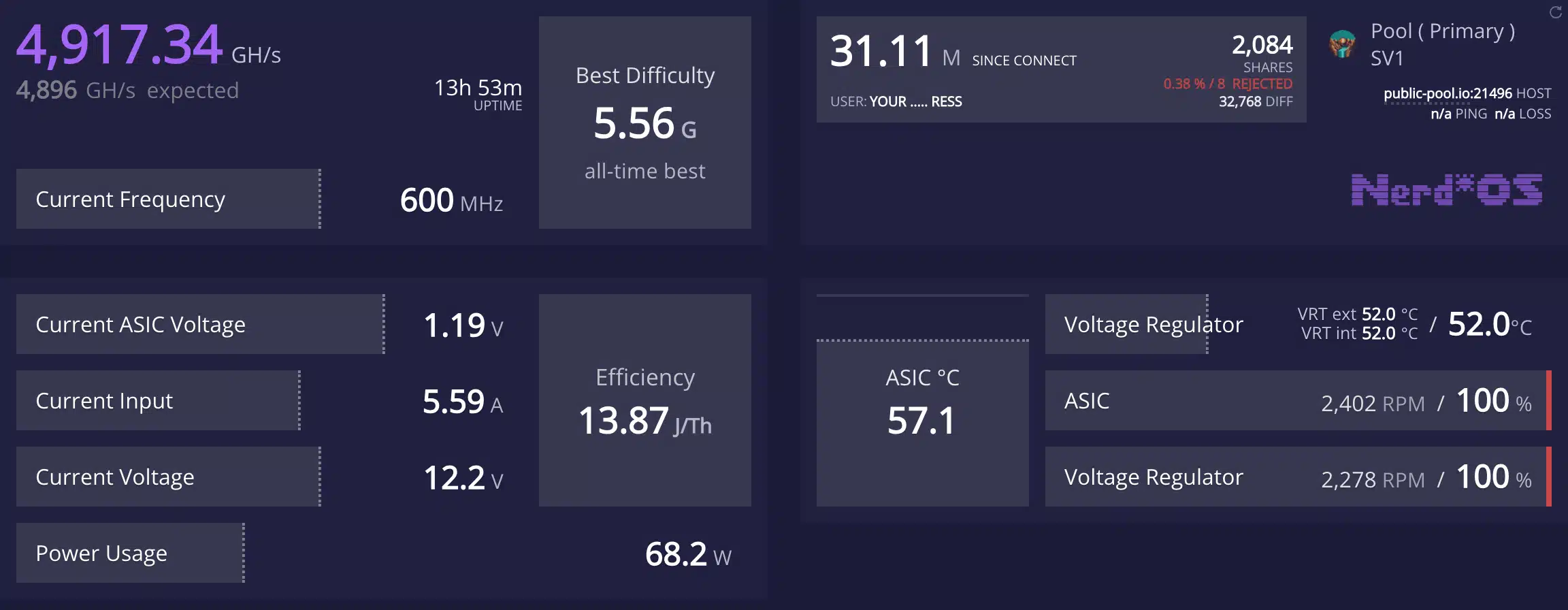
Input voltage, current, power, and efficiency
| Reading | How to interpret it |
|---|---|
| Current Voltage / Input Voltage | The power-supply input measured by the miner, in volts. It is different from the much lower ASIC core voltage. |
| Current Input | The measured input current, in amperes. It is an operating reading, not the power supply’s maximum rated current. |
| Power Usage | Device-reported DC-side power. It excludes power-supply conversion losses and is not a wall-outlet measurement. |
| Current ASIC Voltage | Measured voltage at the ASIC supply, where supported. It can differ from the requested core-voltage setting because a target and a sensor reading are not the same quantity. |
| Efficiency | Energy per unit of mining work, in J/TH. For illustration, 70 W divided by 5 TH/s is 14 J/TH. Lower is more efficient at that measurement point. Compare device readings with device readings, or wall measurements with wall measurements. |
ASIC temperature, voltage-regulator temperature, and fan readings
The ASIC and voltage regulator are different heat sources. The interface can report the ASIC temperature, a regulator’s internal sensor, and an external or board-area sensor. Do not substitute one for another or apply a temperature limit from a different board revision.
Fan percentage is the requested control output; RPM is the speed reported by the tachometer. Two connected fans may run at different RPM at the same percentage. At very low output, the interface warns that RPM readings may be less exact even when the fan follows the requested duty. A zero or missing reading still deserves a physical check if the fan should be turning.
Per-chip telemetry depends on the board and build. The v1.1.1 API adds per-chip valid hashrate and error hashrate. A hardware-error measure is different from a pool rejection rate: one concerns ASIC work, while the other concerns submitted shares. Not every frontend theme displays every API field.
Nerd* Chart: averages, legends, and time controls
The chart combines mining and thermal trends. Use it to see whether a change persisted, rather than treating a single high or low sample as the miner’s normal behavior.
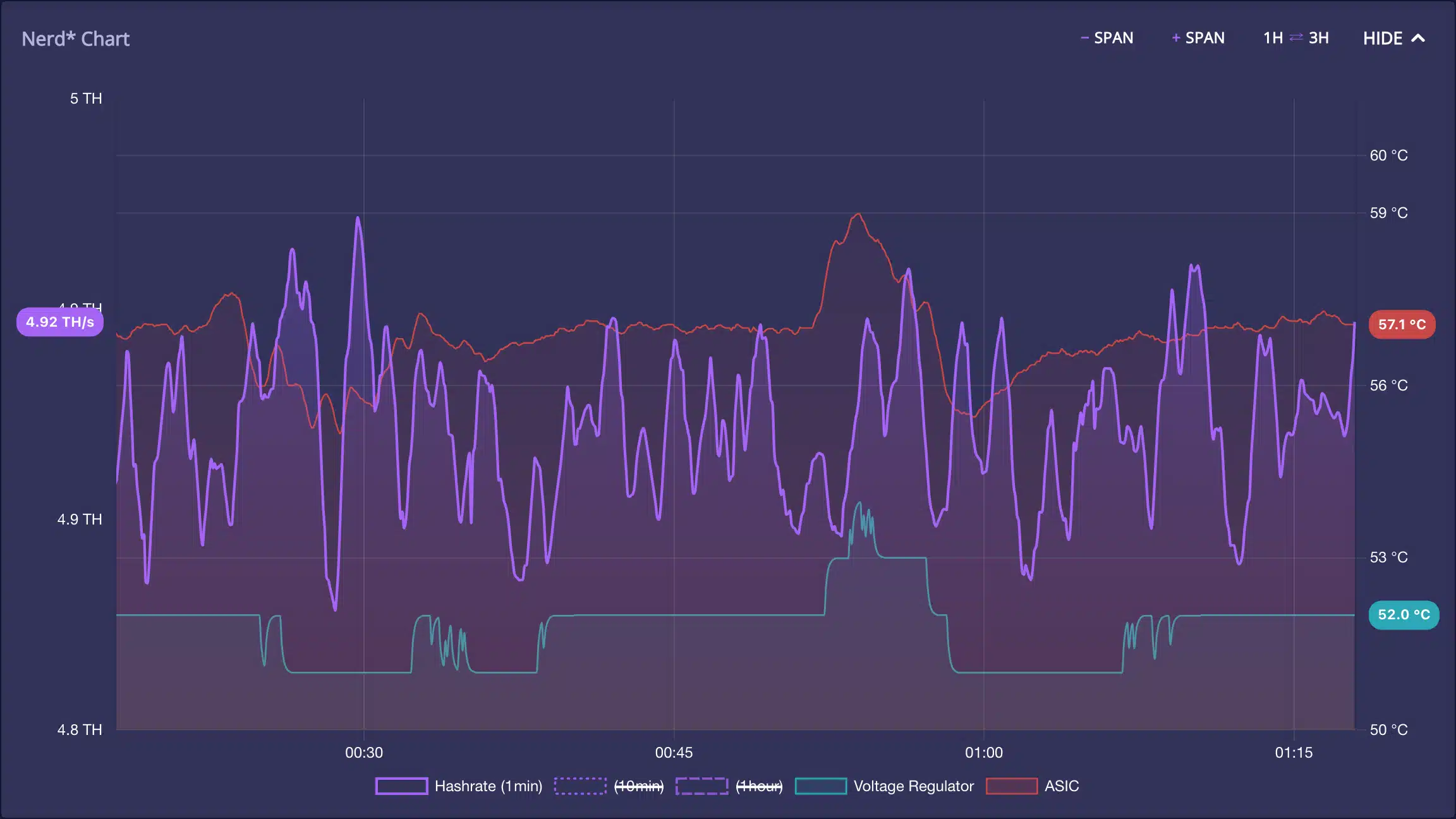
| Control | What it changes |
|---|---|
| Hashrate averages | Legend entries identify the available time averages, such as 1 minute, 10 minutes, and 1 hour. The API also provides a longer average. Longer windows take time to fill after startup. |
| ASIC / Voltage Regulator | Temperature series are plotted against the temperature scale. Read the axis units before comparing a thermal line with a hashrate line. |
| Legend items | Select a series to show or hide it. A struck-through legend means that series is hidden, not that the miner stopped measuring or mining. |
| − Span / + Span | Adjust the visible chart window within the interface’s supported limits. These controls change the view, not mining performance. |
| 1H ⇄ 3H | Switch between the available history windows. It changes how much history is requested or shown; it is not a hashrate multiplier. |
| Hide / Show | Collapse or reopen the chart. Mining and telemetry continue while the graph is hidden. |
Some chart history and display preferences are kept in the browser’s local storage. A different browser or cleared site data can therefore show a different view. The firmware also serves history through its API. Neither the browser chart nor its visual history is a full replacement for a long-term monitoring database.
The frontend contains startup and graph-filtering logic to handle invalid samples, warm-up, and abrupt changes. A gap or smoothed line does not by itself prove the device was offline. Correlate it with uptime, pool submissions, and System logs.
Wi-Fi settings, hostname, and local access
Location: Settings → WiFi Settings. These fields determine how the miner joins your network and identifies itself locally.
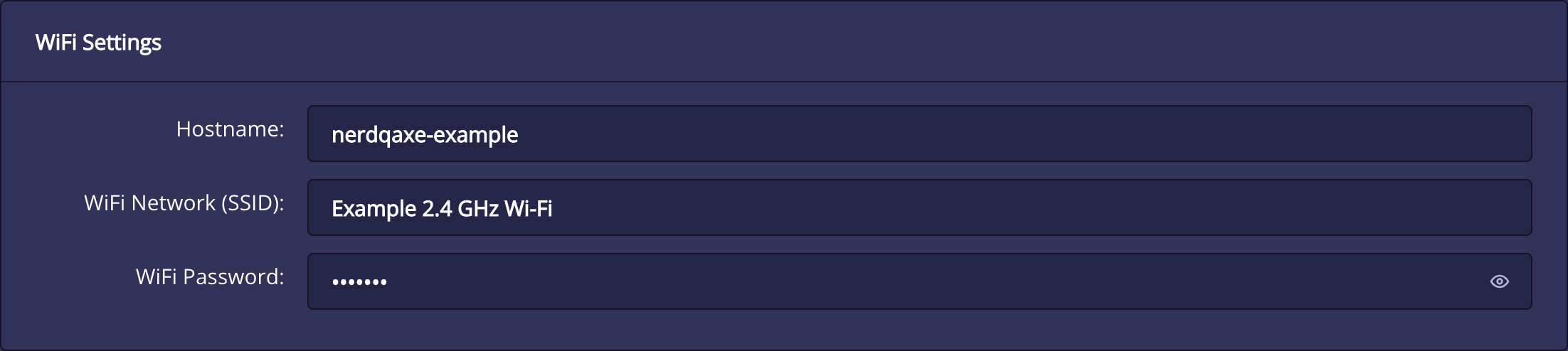
| Field | Purpose and use |
|---|---|
| Hostname | A local device name that helps identify the miner. The hostname and assigned IP address are different. Local-name resolution depends on your network; the IP address remains the direct way to open the interface. |
| WiFi Network (SSID) | The exact, case-sensitive network name. The ESP32-S3 radio uses 2.4 GHz Wi-Fi. A shared 2.4/5 GHz network name can work when the router permits compatible 2.4 GHz clients. |
| WiFi Password | The network password. The eye control shows or hides the text locally. Do not reveal credentials in screenshots or support posts. |
| Wi-Fi scan, when shown | The search control is conditional on access-point setup mode in the reviewed source. If it is absent after the miner joins your network, you can still type the SSID directly. |
Save before restarting. After a network change, the miner may receive a different IP address. Reconnect your browser device to the appropriate home network and read the miner’s current address from its display or your router.
Guest-network isolation, VLAN rules, or a VPN route can prevent local access even when the miner has internet access. Use the setup troubleshooting checks to distinguish a browser-access problem from a pool-connection problem. A 5 GHz connection on your phone does not prevent access if your router bridges it to the miner’s 2.4 GHz network.
Pool settings: failover, dual pool, and connection fields
Location: Settings → Stratum Settings. Stratum is the connection through which a pool sends jobs and the miner returns shares. These settings choose the endpoints and payout identity; they do not create a Bitcoin wallet.
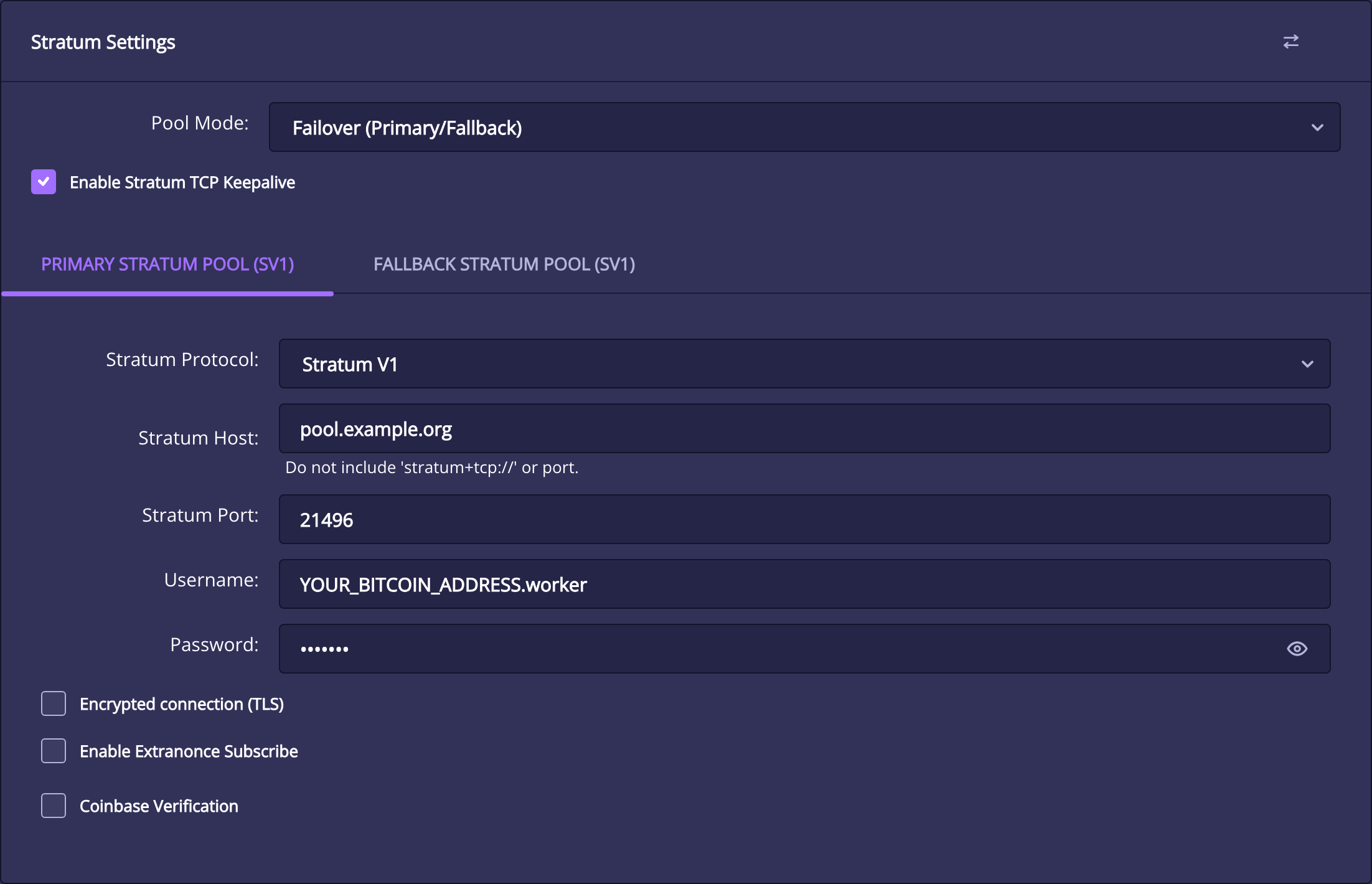
| Control | Explanation |
|---|---|
| Stratum Host | The pool hostname only. Do not include a protocol prefix, a trailing space, or a port suffix. |
| Stratum Port | The numeric port supplied by the pool for the selected protocol and encryption mode. A pool’s plain Stratum endpoint and encrypted endpoint may use different ports. |
| Username | The pool’s exact identity format. Solo pools commonly use a Bitcoin receiving address with an optional worker suffix; account-based pools can use an account and worker name. |
| Password | Usually x when the pool permits it. Follow the pool’s instructions if it requires a different value. This is not a seed phrase, private key, or your Wi-Fi password. |
| Enable Stratum TCP Keepalive | Enables TCP keepalive behavior for the pool connection. It helps detect some dead connections; it cannot repair incorrect credentials, blocked traffic, or a failed internet connection. |
| Enable Extranonce Subscribe | Requests the Stratum extranonce subscription extension where supported. Use the pool’s guidance. It is a protocol-compatibility option, not an extra block-reward or hashrate setting. |
| Swap pools icon | Exchanges the primary and fallback/secondary pool form values. It rearranges the form; review both tabs and save deliberately before applying the new ordering. |
Failover: primary first, fallback when needed
Failover (Primary/Fallback) uses the primary pool for normal operation and the fallback configuration when failover is needed. The fallback needs its own valid endpoint and username. Copying a username format that belongs to a different pool can make the backup fail when it is finally needed.
This mode does not intentionally split work between both pools at once. Check the Dashboard’s active-pool indication to see which connection is in use. The API reports the active entry and whether fallback is being used, so an inactive card should not be interpreted as a second failed miner.
Dual pool: allocate jobs between two pools
Dual Pool keeps two pool configurations and exposes a Pool Balance slider. The percentage controls job allocation between pool 1 and pool 2. It does not create a second physical miner or increase total hashrate.
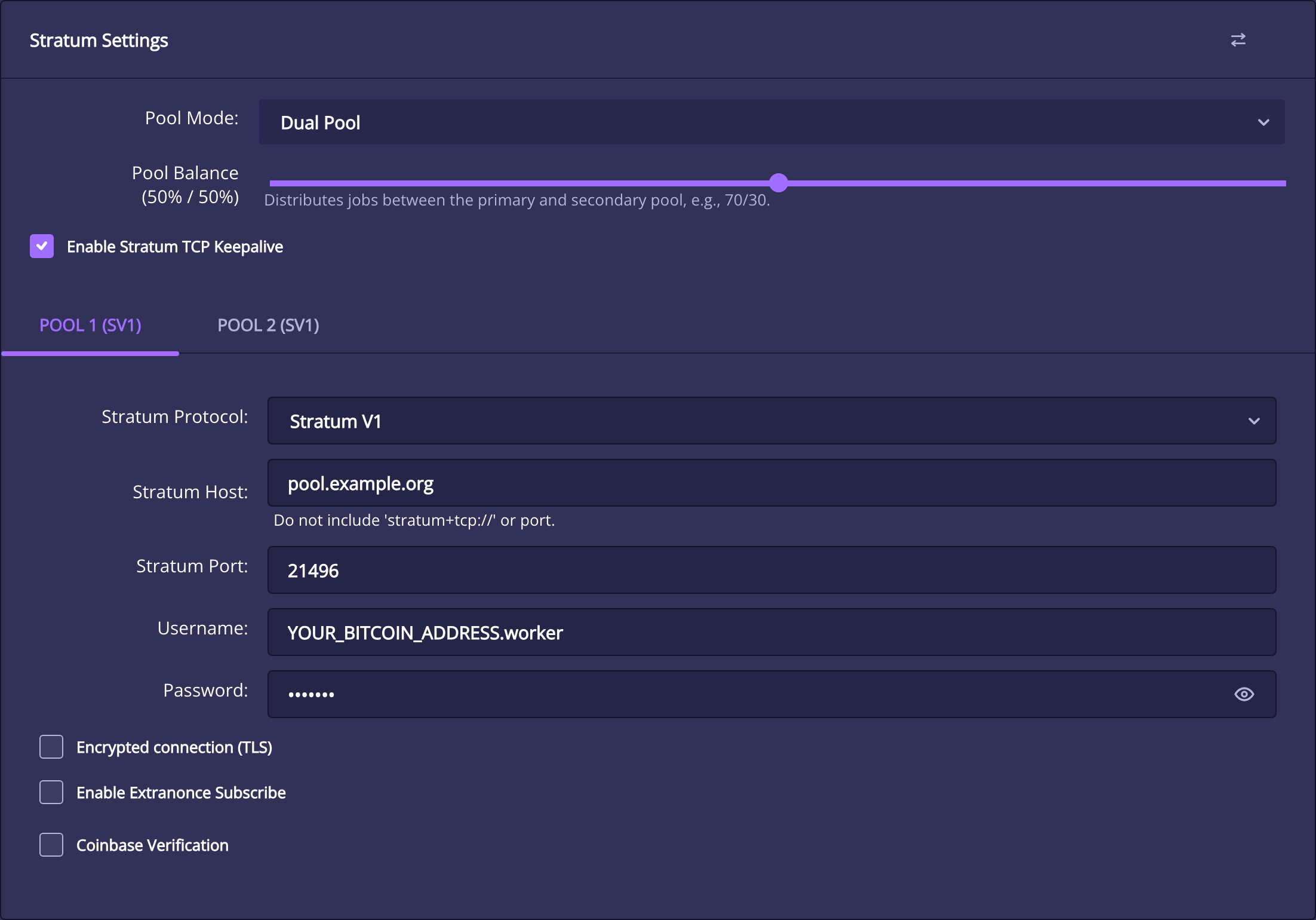
A 70/30 allocation is a work-scheduling target, not a promise that each pool’s short-term reported hashrate or reward will match that ratio exactly. Share randomness and each pool’s estimation window still apply. Configure a valid payout identity on both tabs, and read each pool’s fees and rules before allocating work.
If you are choosing an endpoint, compare solo mining pools first. Enter your own receiving address. A worker name is a label for the device, not another wallet.
Stratum V1, TLS, and Stratum V2
Stratum V1 over plain TCP or TLS
Stratum V1 is the familiar pool protocol used by many home miners. The Encrypted connection (TLS) checkbox selects encrypted transport for a compatible Stratum V1 endpoint. Use the pool’s TLS hostname and port; enabling TLS against a plain-text port will not make that endpoint encrypted.
TLS protects traffic on that connection. It does not replace your payout-address check or make a pool trustworthy. The reviewed transport uses certificate verification and the pool hostname. Nerd*OS v1.1.1 also updates the certificate store, so a release’s certificate changes can matter when diagnosing encrypted connections.
Stratum V2 and server authentication
Choosing Stratum V2 changes the available form controls. V2 uses its own transport and negotiation; the V1 TLS and extranonce-subscription checkboxes are not interchangeable with V2 authentication.
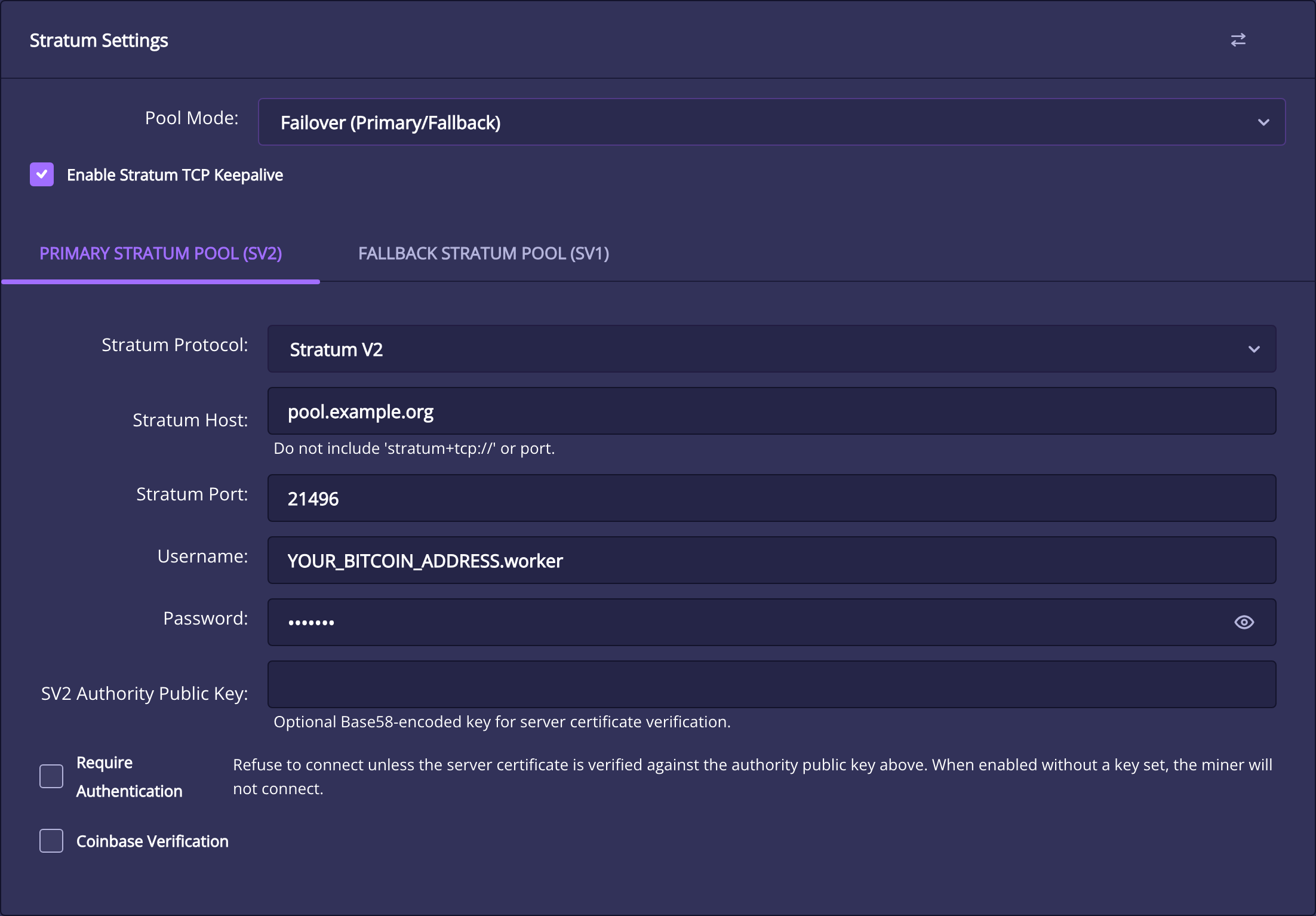
| Control | Purpose |
|---|---|
| SV2 Authority Public Key | An optional Base58-encoded authority key supplied by the server operator, used to verify the server certificate. Copy it from a trusted source. |
| Require Authentication | Refuses the connection unless the server certificate verifies against that authority key. The interface explicitly warns that enabling this without a key prevents connection. |
| Host, port, username, password | Still belong to the selected pool. Use the V2 endpoint and credentials specified by the operator rather than reusing a V1 port by assumption. |
The v1.1.1 release requires version-rolling support during V2 setup and refuses an incompatible server rather than producing invalid shares. The source also contains a standard-channel option marked experimental, but its channel selector is hidden in the reviewed frontend. Do not expect a visible switch on every build.
V2 support here does not mean the miner is automatically running a Bitcoin node or building its own independent block templates. Those are separate capabilities and infrastructure choices. Verify the endpoint and the release’s actual implementation before assuming every V2 feature is present.
Coinbase verification: payout checks and enforcement
Location: The selected pool tab in Stratum Settings. A pool’s coinbase transaction defines where a block reward is paid. Nerd*OS can inspect the supplied template for your address and, in the extended mode, the pool’s share of the reward.
This refers to the Bitcoin coinbase transaction, not the Coinbase exchange. It is useful for checking a compatible direct-payout solo pool. An account-based pool that pays miners later may not put your personal address in its block coinbase, so enforcement can reject an otherwise intentional account-pool configuration.
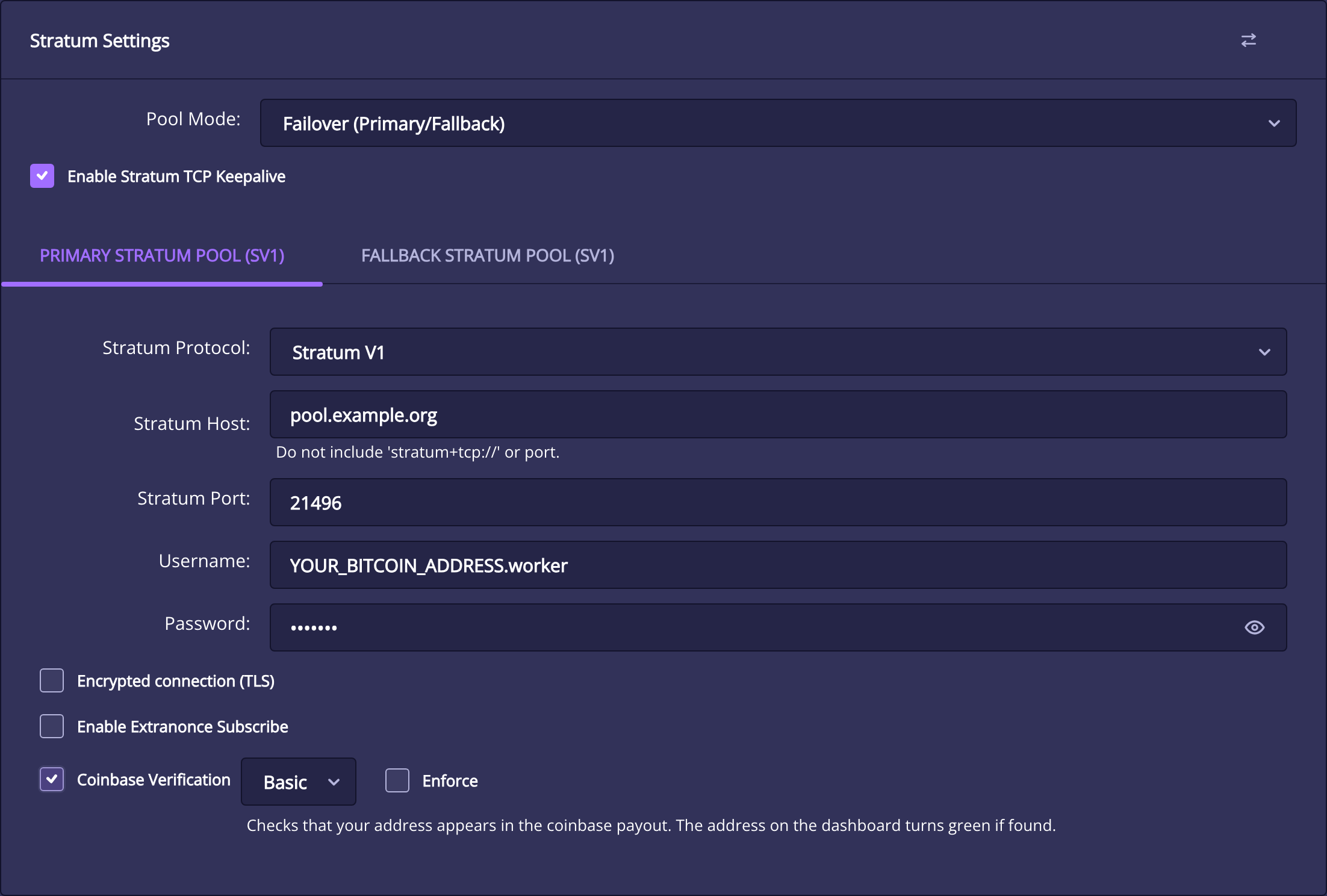
| Option | Behavior |
|---|---|
| Disabled | No coinbase payout check is requested through this setting. |
| Basic | Checks whether the miner’s configured address appears in the pool’s coinbase transaction. The dashboard address changes color when the check passes. |
| Extended | Adds a maximum pool-fee check to the payout-address check. |
| Max pool fee | The largest pool share of the coinbase reward that you permit, as a percentage. Set it according to the pool’s published fee, not an unrelated example. |
| Enforce | Disconnects and blocks a pool when verification fails. Without enforcement, a verification failure and a connection failure are not necessarily the same event. |
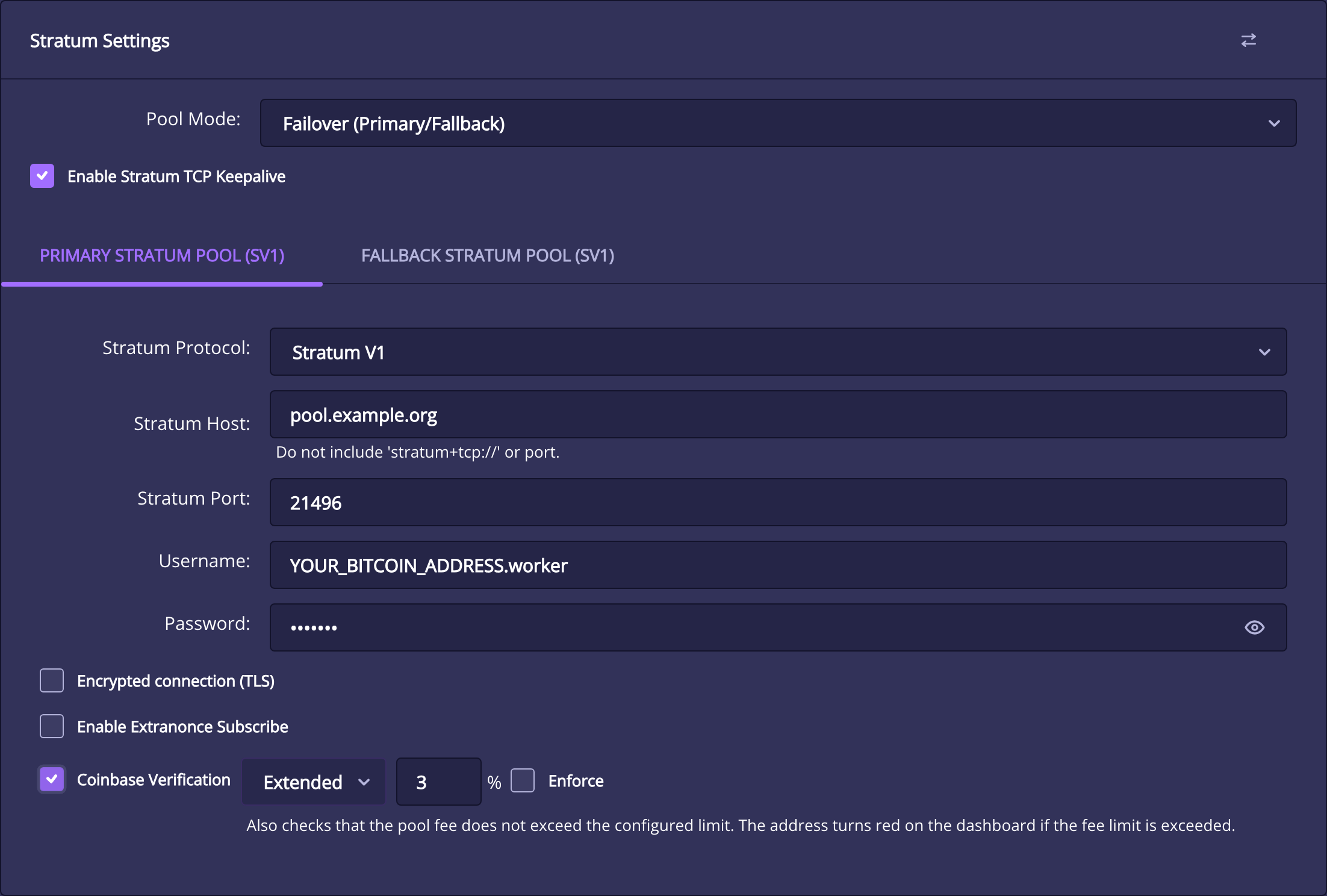
Saving verification changes can briefly reconnect the pool so the new policy takes effect. If the pool becomes blocked, read the displayed reason: the configured address was not found, or the fee exceeded your limit. Recheck the address, username format, payout model, and fee before changing the policy.
This is a check of the template information the miner receives. It is not a full Bitcoin-node validation service, a payout guarantee, or an independent audit of the pool operator. For background, see our article on mining-pool payout verification.
Mining settings: frequency, voltage, and advanced controls
Location: Settings → Mining Settings. Keep the board’s default frequency and voltage while establishing normal operation. The available defaults and limits come from the firmware’s device configuration, so a screenshot from another model is not a settings prescription.

Frequency and core voltage
Frequency sets the ASIC clock. Increasing it can increase work rate, power demand, and thermal load. Core Voltage sets the requested ASIC supply voltage. The lower measured voltage on the Dashboard is a separate reading, not a second setting to copy back into this field.
Stable tuning depends on the exact board, cooling, supply, and silicon. Do not apply a universal frequency/voltage pair across Nerdaxe-family models. For board-specific measurements, see our NerdQaxe++ Revision 7 hardware analysis.
Safe, Advanced, and Pro interface levels
The warning-triangle control changes which settings the browser exposes. In the reviewed source, a single click toggles Safe and Advanced, while a double-click selects Pro. The preference is stored in that browser and expires after a day. Revealing fields does not by itself change the saved mining configuration.
Safe mode uses the board’s provided dropdown choices. Advanced exposes additional tuning fields; Pro exposes deeper controls, including PID coefficients where supported. The firmware’s own warning dialog is a reason to review the change, not proof that every value below the warning threshold is safe.
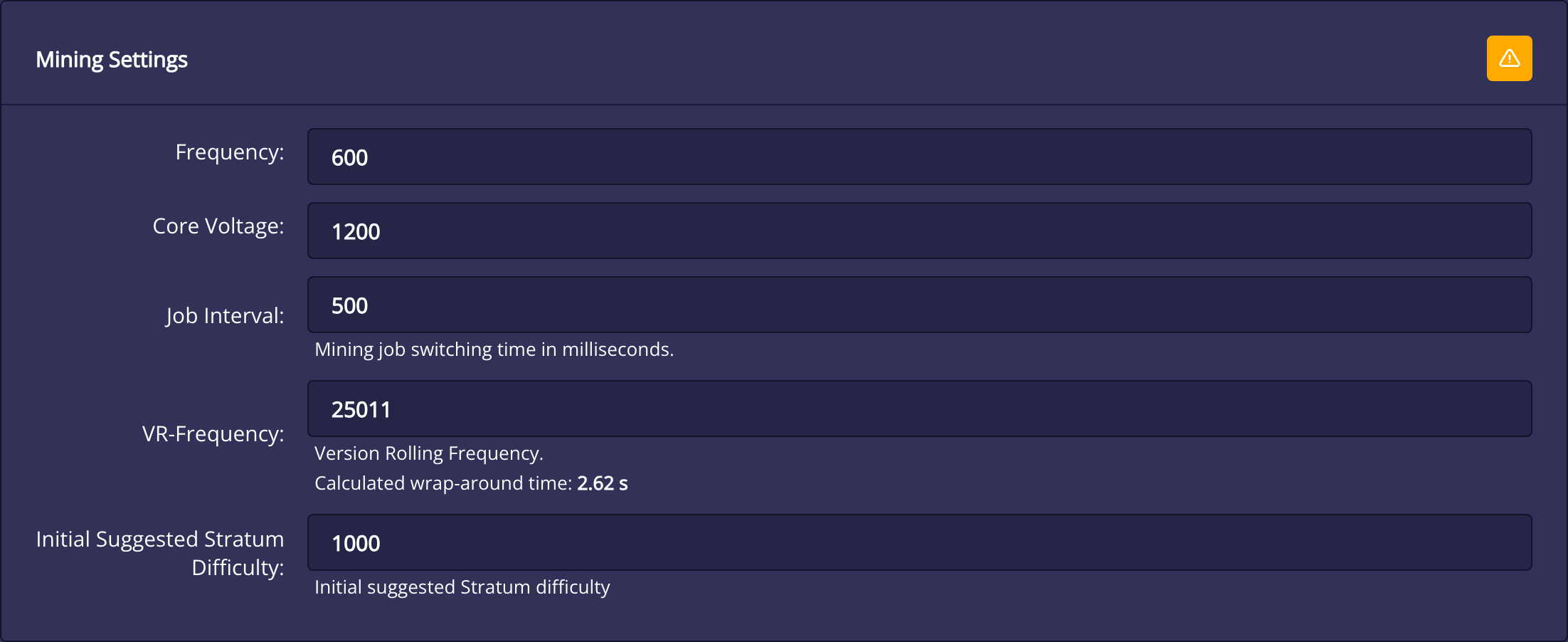
| Field | Meaning and practical limit |
|---|---|
| Job Interval | Mining job-switching time, in milliseconds. This affects work scheduling. It is not the browser refresh interval or a guaranteed share interval. |
| VR-Frequency | Version Rolling Frequency. Here “VR” means version rolling, not voltage regulator. The UI calculates a wrap-around time using 65,536 ÷ VR-Frequency. Leave it at the board default unless you are diagnosing a specific scheduling issue. |
| Initial Suggested Stratum Difficulty | The share difficulty the miner initially suggests to the pool. A pool can choose its own target or change it using variable difficulty. This does not change Bitcoin network difficulty or improve the chance of a particular hash finding a block. |
After a deliberate tuning change, compare sustained hashrate, accepted and rejected shares, power, temperatures, and reset behavior. Change one variable at a time. A brief hashrate peak is not evidence of a stable or more efficient configuration. Warranty coverage is governed by the applicable Solo Satoshi warranty terms, rather than a generic frontend warning.
Fan controllers, PID, and shutdown protection
Location: Settings → Fan Controller. The number of fan channels and their labels depend on the board. Our Revision 7 interface identifies the ASIC fan as M2 and the voltage-regulator fan as M1. Use your own board’s displayed connector labels before applying separate channel settings.
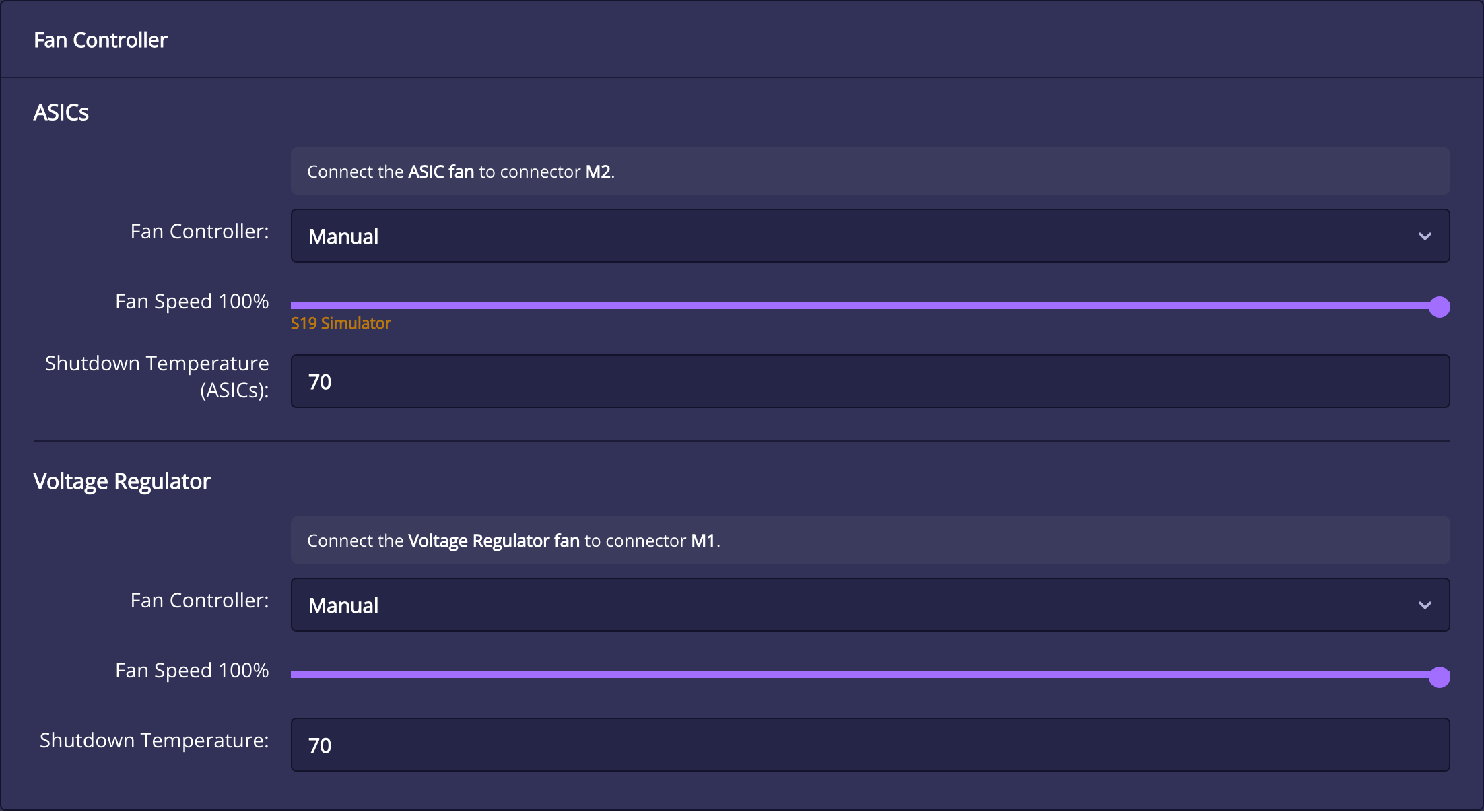
Manual fan speed
Manual uses a fixed requested output percentage. A fixed duty does not hold a fixed temperature when room temperature, airflow, or power consumption changes. Monitor both ASIC and regulator temperatures after changing it.
The reviewed UI shows an overheating warning below 40% manual output and an “S19 Simulator” label at 100%. Those are interface messages, not a universal minimum safe speed or an alternative mining mode. The 100% label refers to fan noise; the device remains the same miner.
Automatic PID control
Auto Fan Control (PID) adjusts output to approach a temperature target. The target is a control objective, while shutdown temperature is a separate protection threshold. They should not be treated as the same setting.
PID stands for proportional, integral, and derivative control. P reacts to the current temperature error, I responds to accumulated error, and D responds to its rate of change. Bad coefficients can produce hunting, slow response, or poor cooling. The normal user action is choosing the supported automatic mode and a suitable board-specific target, not copying arbitrary P/I/D values from another miner.
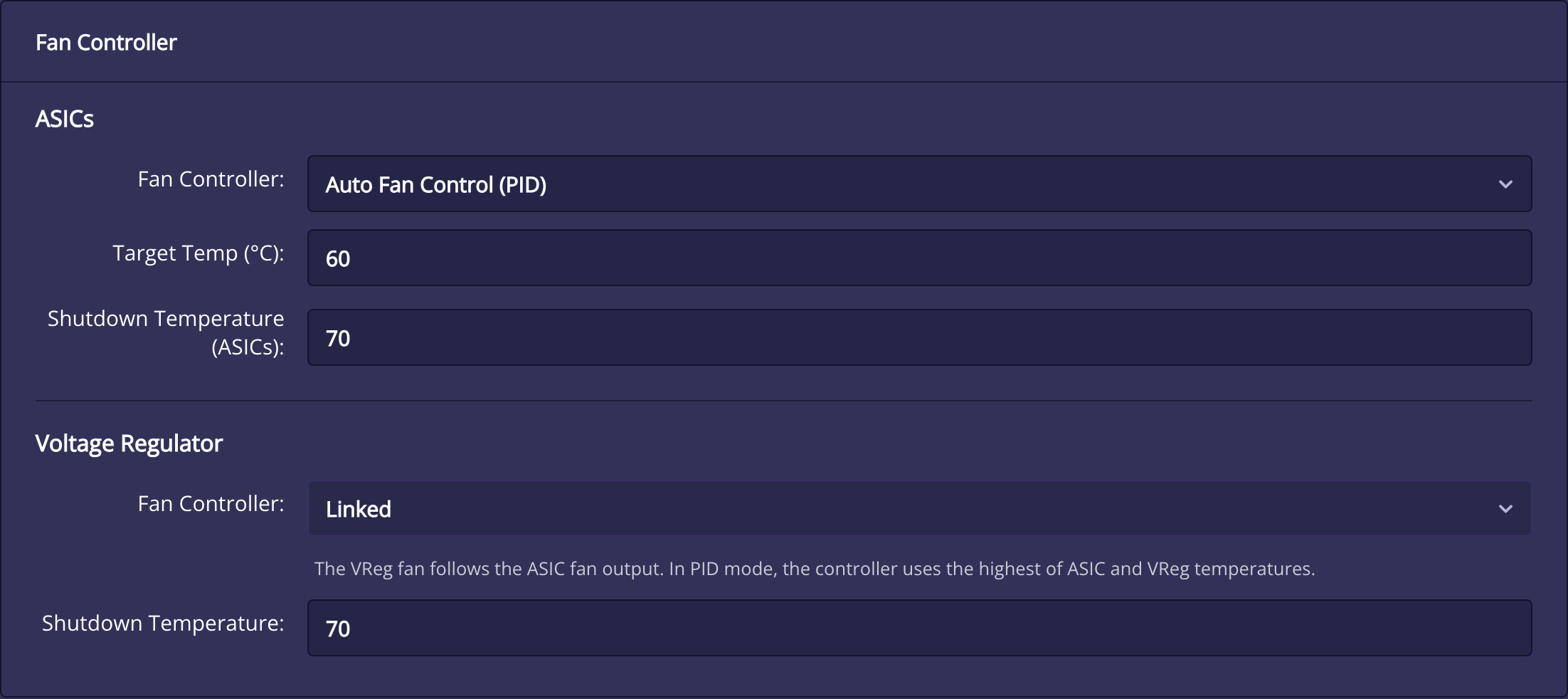
Linked versus independent regulator-fan control
Linked makes the voltage-regulator fan follow the ASIC fan output. In the reviewed implementation, linked PID uses the higher ASIC/regulator temperature for its control input. This avoids assuming that a cool ASIC means the regulator is also cool.
Independent Manual or independent PID lets the regulator channel use separate settings. Check the physical connectors before switching away from Linked. Swapping the intended fan channels can make the wrong thermal sensor govern a fan.
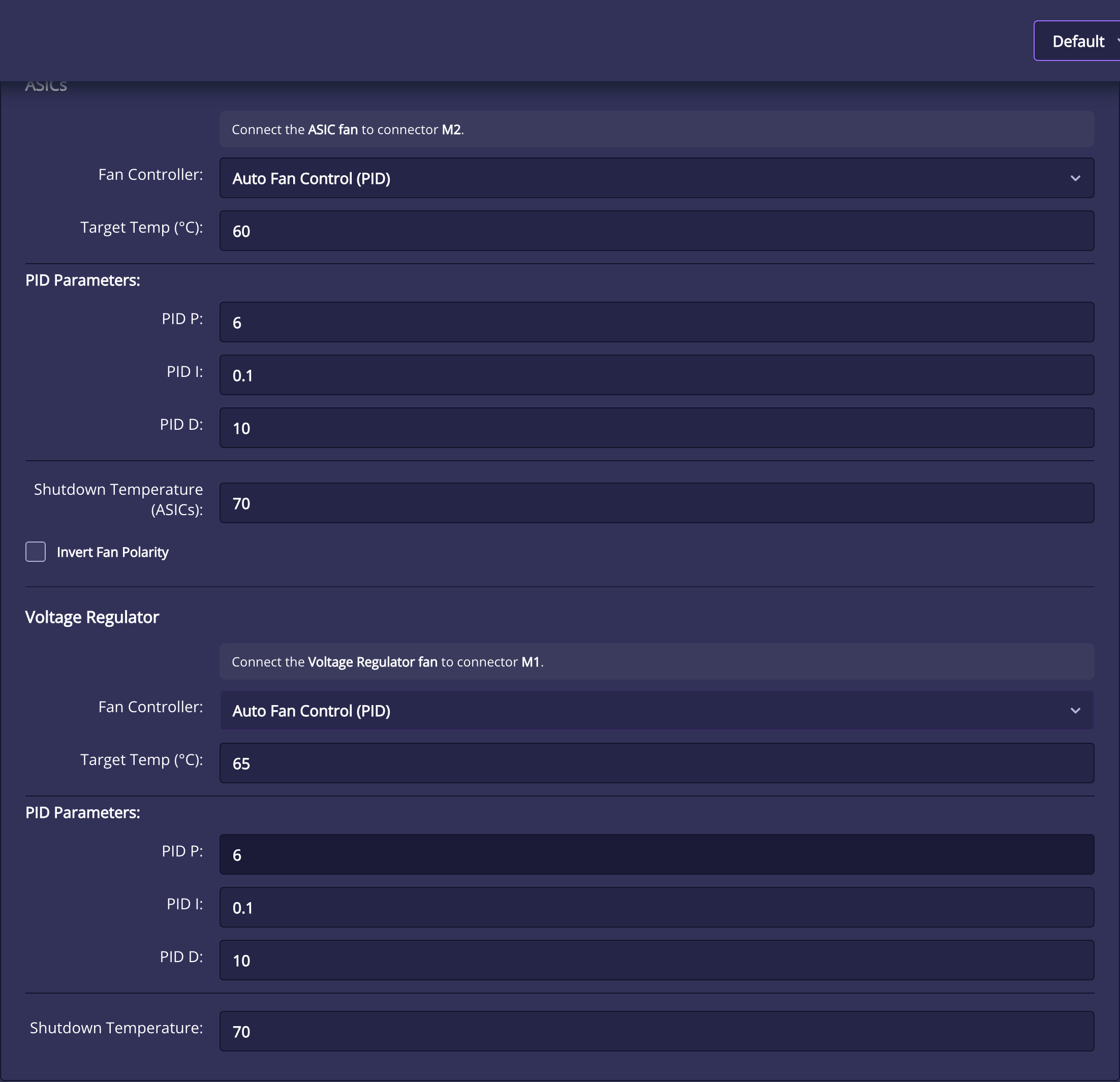
Shutdown thresholds and fan polarity
Shutdown Temperature is the protection point for the relevant sensor/channel. It is not the normal operating target. If protection stops mining, investigate airflow, fan operation, room conditions, and power settings before attempting another run. Raising the threshold to conceal overheating removes useful protection.
Single-fan configurations can expose a setting to let PID use the higher ASIC and regulator temperature. Pro mode can expose Invert Fan Polarity for compatible hardware. That changes the electrical control interpretation; it is not the same as reversing the fan’s physical airflow. Use the board’s documented fan behavior rather than toggling it to chase a preferred RPM number.
Display settings, themes, language, and Mempool
Flip Screen, automatic screen shutdown, and time format
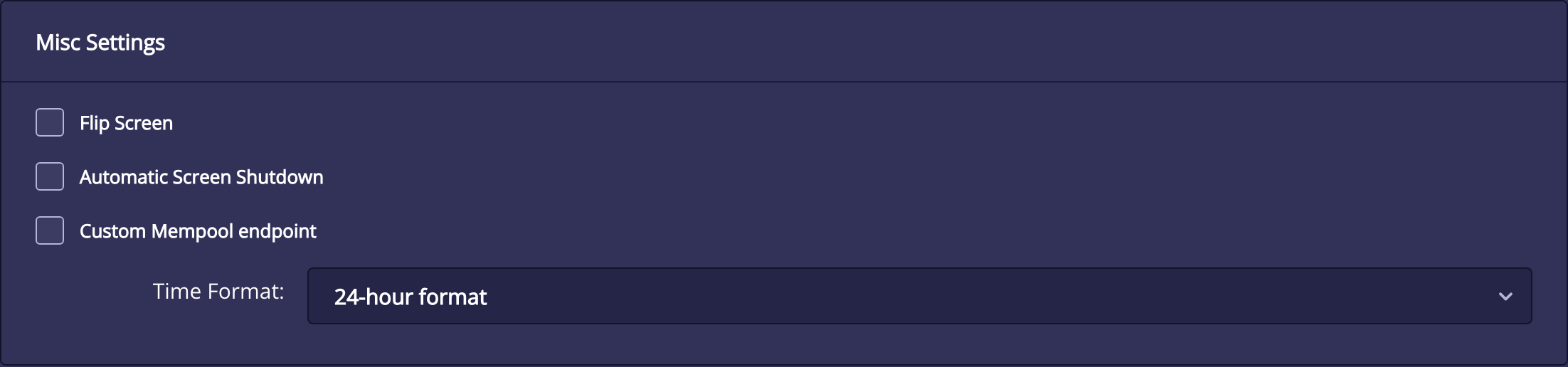
Flip Screen changes the miner’s physical display orientation. It does not rotate the browser interface. Save and follow the restart notice for the change to take effect.
Automatic Screen Shutdown lets the physical display turn off automatically. A dark screen does not necessarily mean mining stopped; check the dashboard and pool before treating it as a power failure. Time Format selects 12-hour or 24-hour presentation where the interface uses it.
What the miner’s physical display shows
The physical display and the browser dashboard are separate interfaces. The reviewed T-Display-S3 implementation has the following states; artwork, available data, and button orientation depend on the model and theme.
| Screen | Purpose |
|---|---|
| Setup portal | Shows the temporary setup-network name and connection instructions while network setup is incomplete. |
| Mining | Shows the current mining summary, such as work rate, shares/difficulty, temperature, power, and network status. Read your own device’s IP address rather than copying an illustration. |
| Settings summary | Shows the current pool/port, frequency, requested core voltage, and fan mode. It is a status summary, not the full browser configuration form. |
| Bitcoin price / global statistics | Shows supporting market or network information fetched by the firmware. Missing external data does not automatically mean that the ASIC mining task has stopped. |
| OTP enrollment QR | Shows enrollment material on the physical device. Treat it as a security secret and do not include it in public photos. |
| Identify | Temporarily blinks the display to help locate a selected supported device. It is a locating aid, not an ASIC benchmark. |
| Block Found overlay | A configured found-block notification. The v1.1.1 release fixes dismissal using a short button press. |
| Power-off state | Represents firmware-controlled shutdown of mining hardware. The external power supply is still a separate physical connection. |
In the reviewed display implementation, the first logical button advances ordinary screens once the display is awake, while the second toggles the display/backlight. A wake press can be consumed before a screen changes. Holding both buttons enters the shutdown countdown; do not use a long two-button press merely to look for another statistics page. Check the button mapping for your physical board.
Source: display state machine and button behavior.
Custom Mempool endpoint
Enabling Custom Mempool endpoint reveals a Mempool URL field. It selects the compatible API endpoint used for supporting chain information instead of assuming the public service. Supply a base endpoint compatible with the firmware, not a block-explorer page for a single address or transaction.
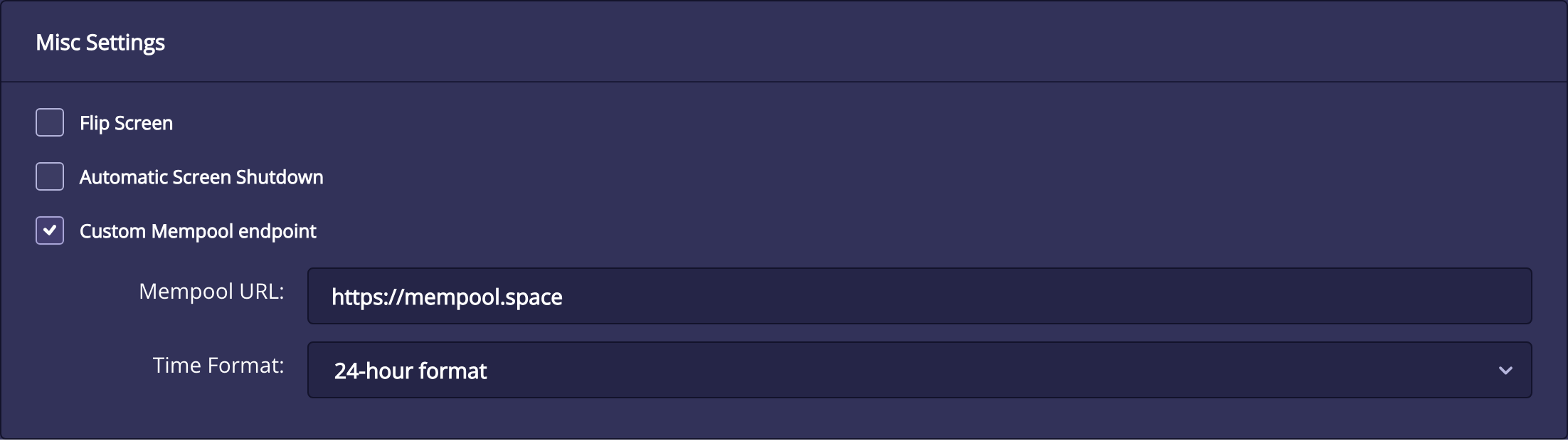
This setting does not choose the mining pool, change the payout address, or automatically enable solo mining against your own node. Those require separate Stratum infrastructure and configuration. A local endpoint also needs to be reachable from the miner’s network.
Browser themes and navigation
The header’s theme selector changes the web interface. The reviewed release offers Default, Light, Dark, and Gaia themes. Theme choice is saved in the browser, so another phone can show a different appearance without changing the miner’s operating settings. The sidebar menu control changes navigation visibility, which is useful on a small screen.
Gaia has a different visual layout and can expose a session-statistics reset control in the header. Reset Session Stats clears session counters; the v1.1.1 dialog can optionally include all-time records. Resetting all-time best difficulty and found-block records cannot be undone. This is separate from rebooting and from a factory configuration reset.
Language selector

The Language / Langue card selects the frontend language. It does not alter pool credentials, Bitcoin address encoding, or mining work. If you are following an English guide in another language, use the function and menu position as well as the translated label.
Swarm: monitor multiple miners
Location: Swarm. This is a network-monitoring view for compatible devices, not a mining pool. It collects device telemetry and adds overview totals without merging wallets, sharing private keys, or changing the Bitcoin consensus rules.
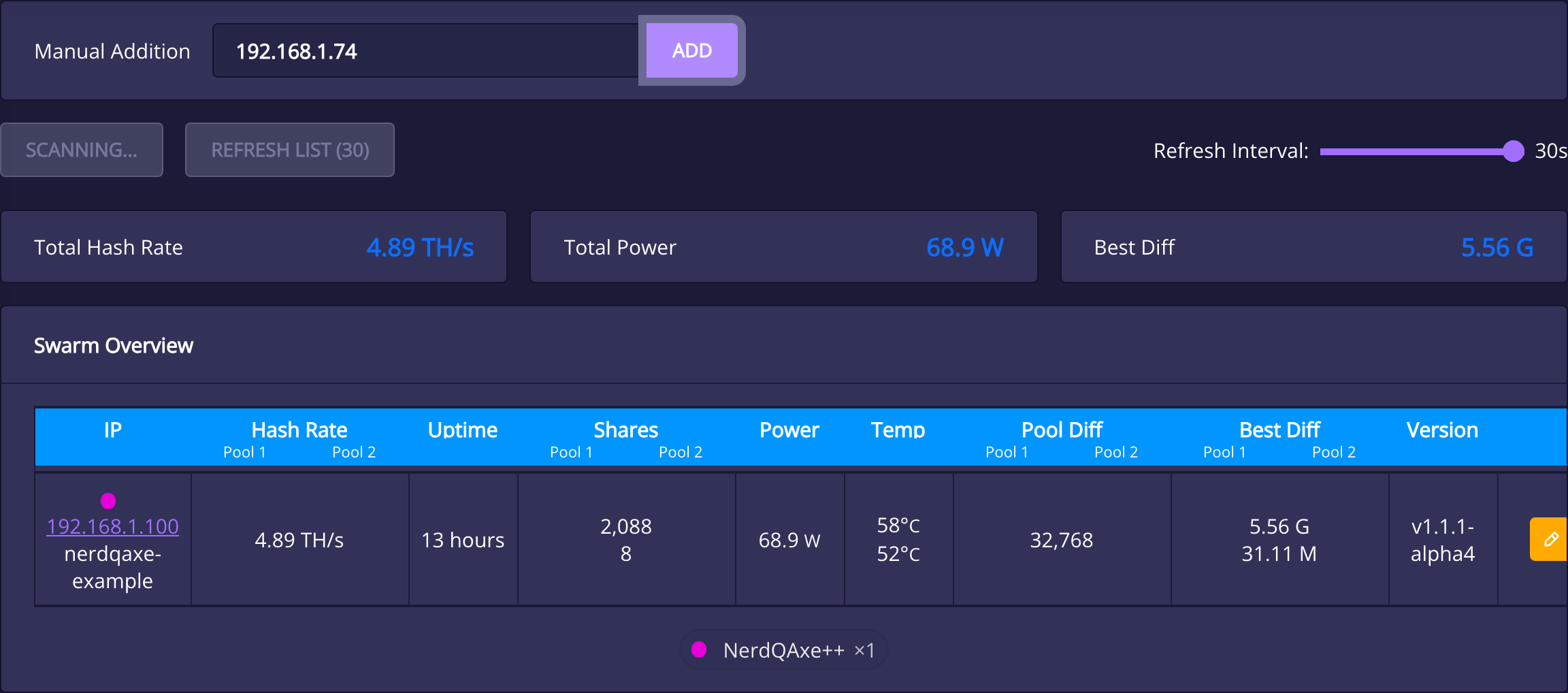
| Control | Purpose |
|---|---|
| Manual Addition | Enter a miner’s reachable local IP address and choose Add. Use this when automatic discovery misses a device. |
| Automatic Scan | Searches the local network for compatible devices. Different subnets, guest-network isolation, or unavailable APIs can prevent discovery. |
| Refresh List | Requests current data for the saved list. Refreshing a monitoring view does not restart the miners. |
| Refresh Interval | Sets how frequently the browser refreshes the overview. It is unrelated to ASIC Job Interval. |
| Totals | Adds the listed telemetry for total hashrate and power, plus a best-difficulty overview. These are monitoring values, not a combined pool account. |
| Device actions | Where supported, open a device, edit settings, restart it, or remove it from the list. Restart and configuration actions affect the selected device; removing a list entry does not uninstall its firmware. |
Rows can include IP, hashrate, uptime, accepted/rejected shares, power, temperatures, pool difficulty, best difficulty, and firmware version. Dual-pool devices can expose per-pool columns. A missing field may reflect API support, not a zero measurement.
The device list is stored by the frontend in browser storage. A fresh browser can therefore start with an empty list. Miner discovery is based on compatible interfaces and local reachability, not the retailer from which a device was purchased.
InfluxDB and Grafana: long-term monitoring
Location: InfluxDB. This optional integration sends time-series telemetry to an external database. It is useful for history across sessions and for dashboards such as Grafana. Mining does not require an InfluxDB server.
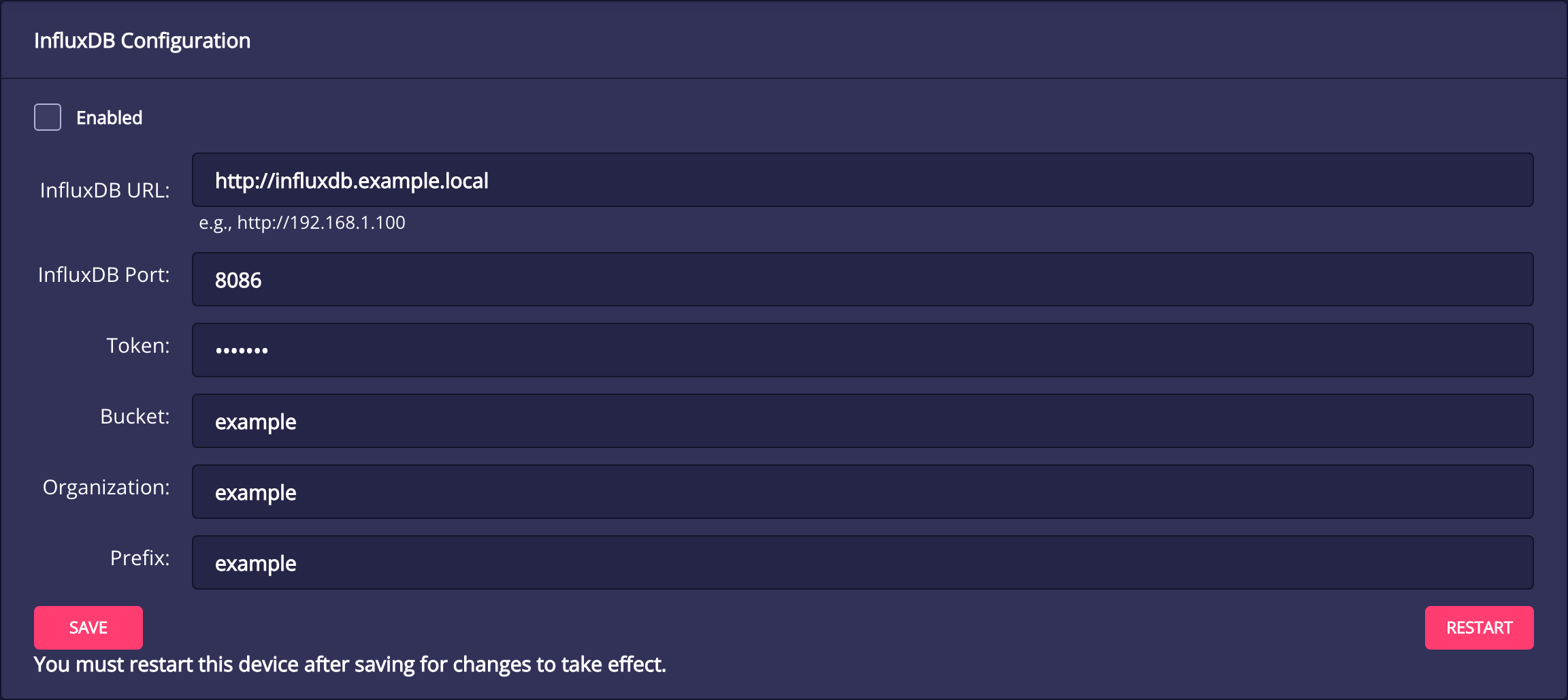
| Field | What to supply |
|---|---|
| Enabled | Turns the integration on or off. Enable it only after you have a reachable, compatible database service. |
| InfluxDB URL | The server’s base URL, including its scheme. It is not the miner’s own dashboard address. |
| InfluxDB Port | The port on which your database accepts requests. Use the value configured on your server. |
| Token | An InfluxDB API token with the permissions needed for the selected organization and bucket. Treat it as a credential. |
| Bucket | The time-series destination. The reviewed backend checks for the bucket and can attempt to create it, so token permissions can affect initialization. |
| Organization | The organization expected by the database service. |
| Prefix | The configured prefix used for the miner’s exported measurements. Keep it consistent with the dashboards or queries that consume the data. |
The backend gathers mining, share, power, thermal, fan, and connection statistics and writes telemetry on a roughly 15-second cycle in the reviewed version. Some electrical and thermal samples are averaged for export. The source separates blocking database writes from the power-management lock, so a slow write is not intended to stall thermal control.
Save, then Restart. This page explicitly requires a restart after saving before the integration uses the new settings. A saved form alone does not prove data is arriving; confirm the measurements in your database and inspect System logs if the server or bucket is unreachable.
The project includes a Grafana monitoring example. Grafana displays data stored in the database; it is a separate service, not an extra menu installed on the miner.
Alerts: webhooks and the block-found display
Location: Alerts. The reviewed interface provides selected event notifications through a webhook and a separate physical-display option.
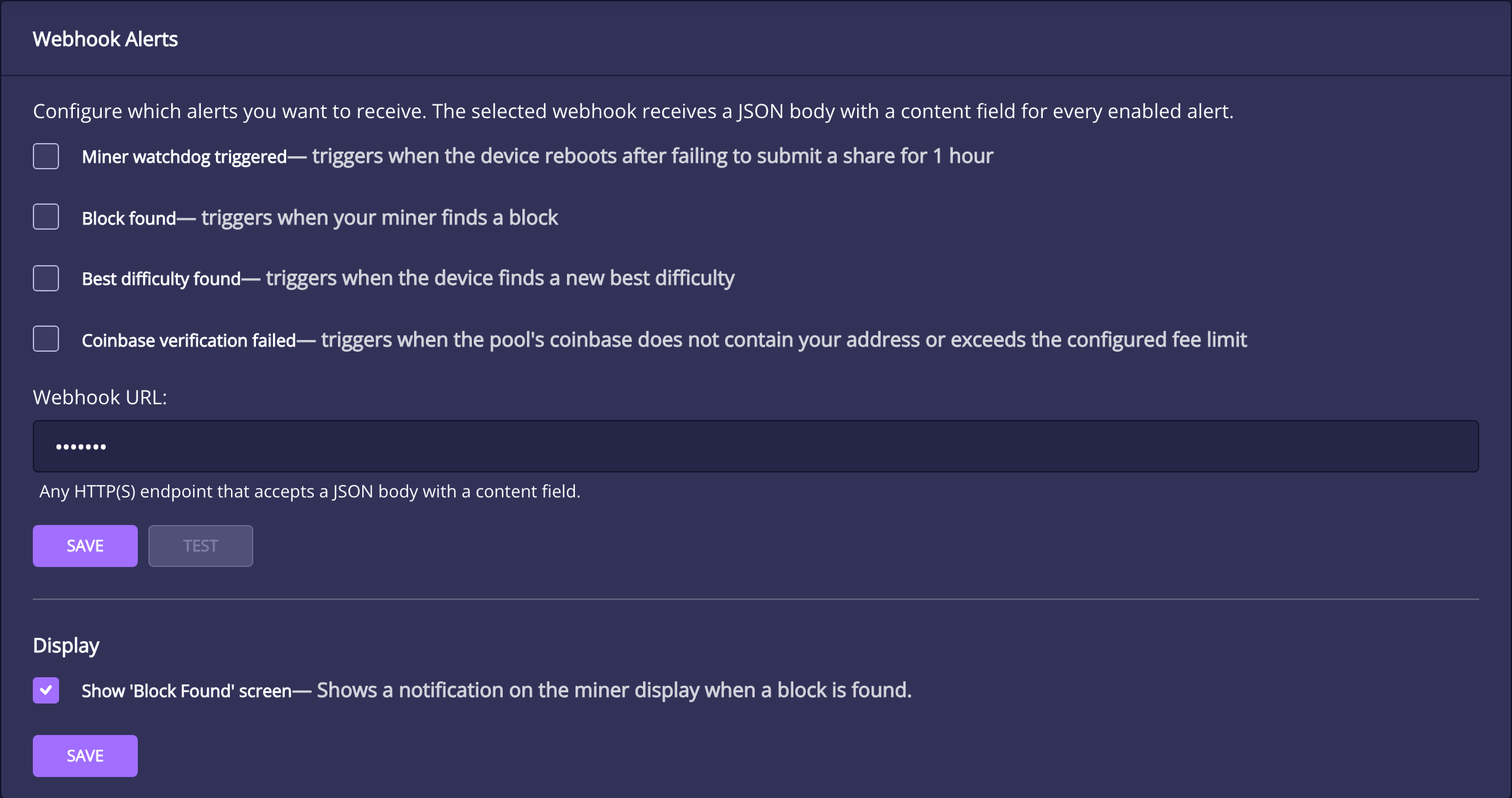
| Event | What triggers it |
|---|---|
| Miner watchdog triggered | A watchdog-related restart after the miner has failed to receive the expected share-submission response for an extended period. The reviewed watchdog uses a one-hour window; it is not a promise of an immediate offline alert. |
| Block found | A device-reported found-block event. Verify any claimed block and payout independently using your pool and the Bitcoin chain. |
| Best difficulty found | A new best-difficulty record. It is a share milestone, not necessarily a block. |
| Coinbase verification failed | A payout-address or fee-limit verification failure for the configured pool policy. |
Webhook URL accepts an HTTP(S) endpoint that supports the expected JSON body with a content field, such as a compatible Discord webhook. It is not an arbitrary email address or a Telegram username. If using another service, its receiver must understand the payload or translate it.
Select the desired events, enter the endpoint, and use the webhook section’s Save. The Test button sends a real test notification; it is not just a local preview. Treat the webhook URL as a credential and remove it before sharing a screenshot.
Show “Block Found” screen controls a notification on the miner’s physical display and has its own Save button. It does not send a webhook by itself. Nerd*OS v1.1.1 includes a fix that makes this found-block display dismissible again.
There is no generic temperature-threshold or continuous cloud-offline alert form on the inspected Alerts page. Use the actual event list rather than assuming every label in a translation file is an implemented control. A miner with no network path cannot guarantee delivery of a webhook explaining its outage.
Security: OTP and trusted-browser sessions
Location: Security. Nerd*OS provides one-time-password protection for supported actions. The interface is designed for a trusted local network and explicitly says it does not provide HTTPS for the local web UI.
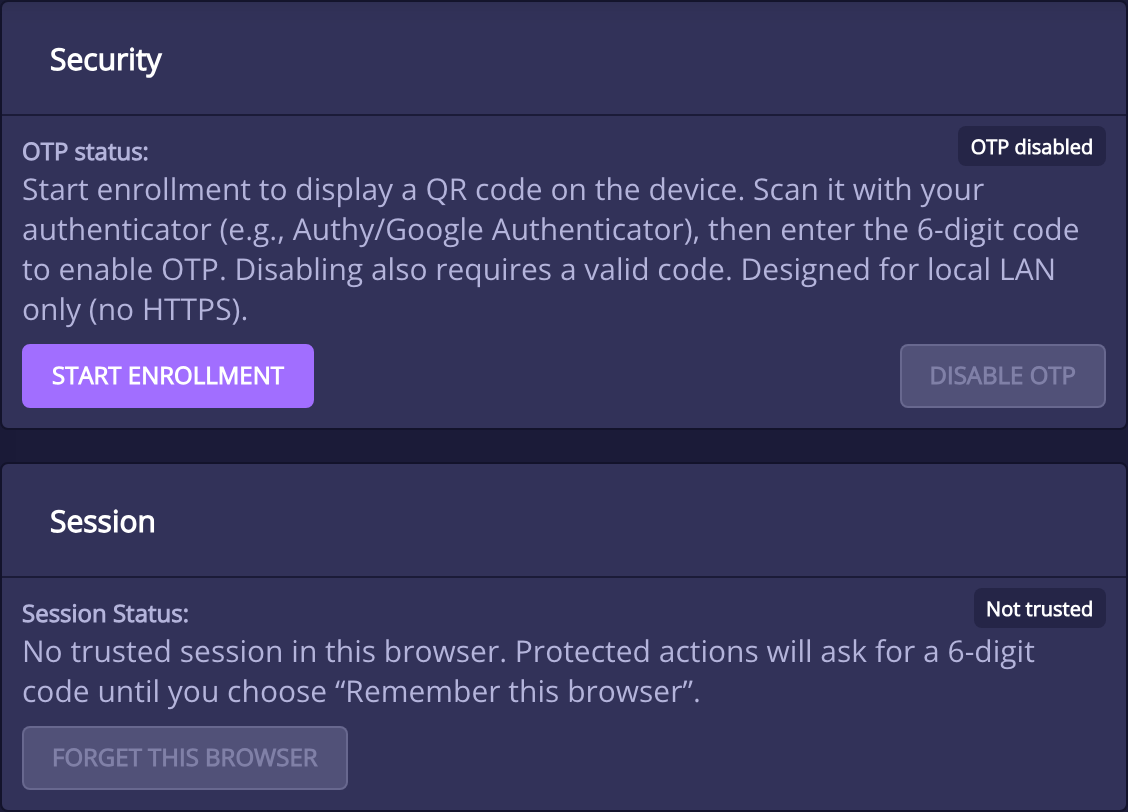
How OTP enrollment works
- Choose Start enrollment when you are ready to configure protection.
- Scan the QR code shown on the miner’s physical display with a compatible authenticator app.
- Enter the current six-digit code in the interface to complete enrollment.
- Keep access to your authenticator and follow the project’s recovery guidance before making future firmware or configuration changes.
The code changes with time. A valid authenticator and reasonable clock synchronization matter; a code entered after it expires can fail. Disabling OTP also requires a valid current code. Do not share the enrollment QR code, secret, or active codes in support screenshots.
Remember this browser and Forget this browser
When offered during a protected action, Remember this browser for 24h creates a local browser session for the supported trust period. Security → Session shows whether that browser is trusted. A different device or browser is not automatically trusted because one laptop completed the flow.
Forget this browser removes that browser’s saved trust so the next protected action requires a code again. It is not the same as disabling OTP on the miner or changing your Wi-Fi password.
What OTP does and does not protect
When OTP is enabled, supported state-changing API requests require a valid code or session. Read-only telemetry can still reveal device and network information to reachable local clients. OTP is not transport encryption, a router firewall, or a reason to expose the web UI publicly. Avoid port-forwarding the miner’s HTTP interface to the internet.
Pool TLS, Stratum V2 authentication, coinbase verification, and local OTP solve different problems. Enabling one does not automatically enable the others: encrypted pool transport does not secure the local web page, and local OTP does not verify the pool’s payout template.
System information, logs, restart, and shutdown
Location: System. This page identifies the firmware and hardware being diagnosed, then provides the live log view and device actions.
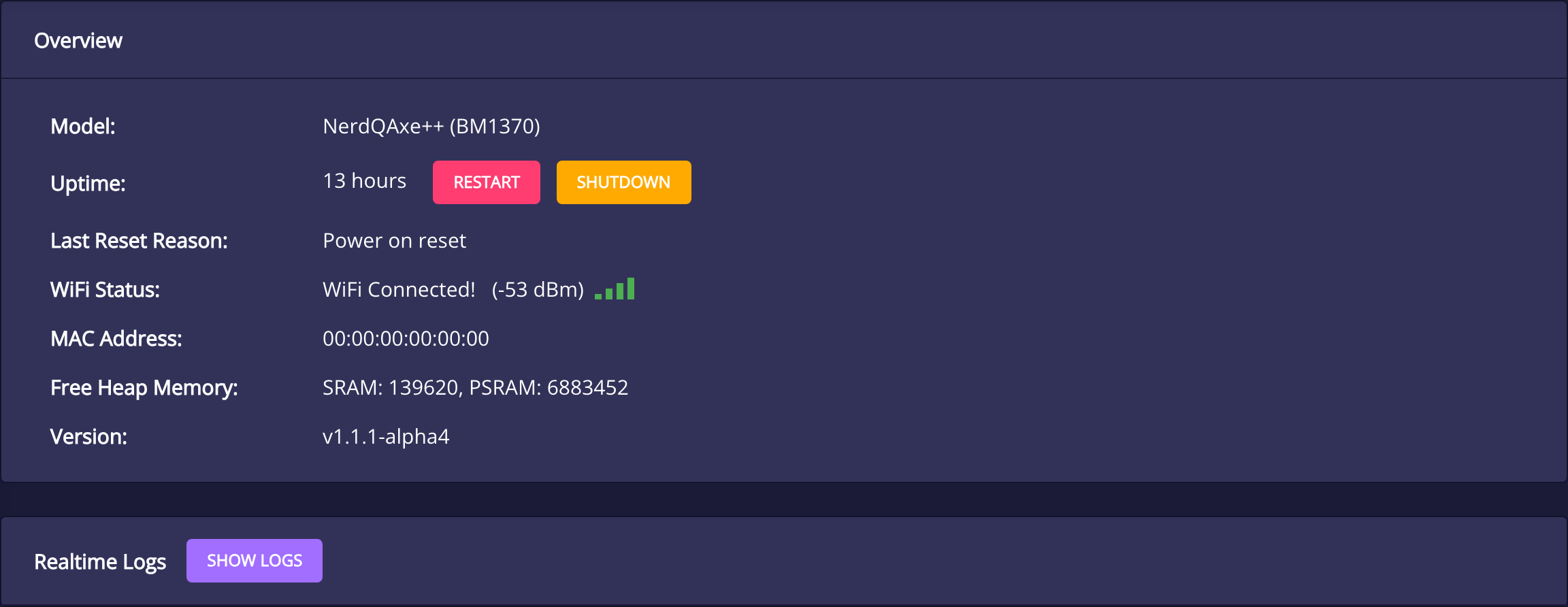
| Field | Use |
|---|---|
| Model / ASIC model | Identifies the device target and ASIC family. Confirm both before selecting a firmware file. |
| Uptime / Last Reset Reason | Shows how long the device has run and how the last reset was classified. Power-on, software restart, panic, watchdog, and brownout describe different events; the reset label alone is not a complete root-cause diagnosis. |
| WiFi Status / RSSI | Shows connectivity and received signal strength in dBm. Less-negative values represent a stronger received signal. Signal strength alone does not prove low latency, correct routing, or successful pool authorization. |
| MAC Address | The network-interface identifier. It can help locate the device in a router list; redact it when it is not needed for support. |
| Free Heap Memory | Available memory, with internal SRAM and external PSRAM shown separately where supported. A reading is diagnostic context, not a user-adjustable performance setting. |
| Version | The installed firmware build. Record the full string when reporting a bug, including a pre-release suffix if present. |
Realtime logs: show, filter, and pause scrolling
Select Show Logs to open the live stream. The view uses a WebSocket connection rather than a static saved report. Filtering narrows the visible messages; it does not filter what the miner does. Pause scrolling to read a message without the newest lines moving it away, then resume when you want to follow current events.
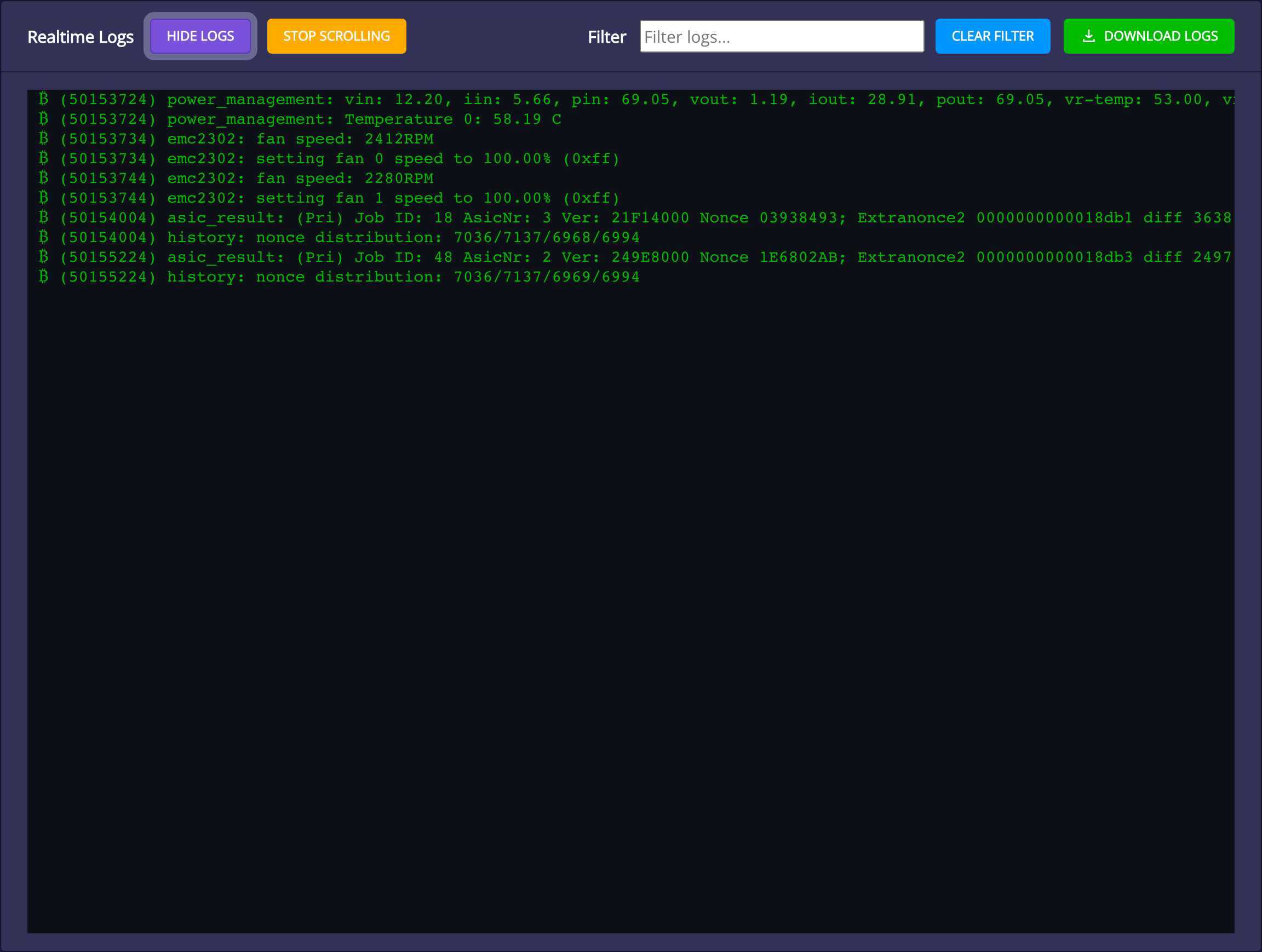
The reviewed frontend coordinates logging across browser tabs to avoid competing log views. If it says logs are already open in another tab, close or hide that other stream rather than assuming mining has stopped. Hiding logs closes the view and frees the browser’s log buffer; it does not stop the miner. Where shown, Download Logs exports the captured log text for inspection. It is not a guarantee of a complete historical record from before the stream was opened.
For a useful support report, include the exact model, full firmware version, pool host/port, relevant error, and what changed before the issue. Review logs for Wi-Fi names, addresses, usernames, webhook endpoints, and credentials before sharing them.
Restart versus Shutdown
Restart reboots the device and resumes normal startup using saved configuration. Shutdown stops mining through the firmware’s shutdown action. It is not an AC power switch and does not mean every circuit has been physically disconnected. Disconnect the external supply before handling the board or changing hardware connections.
Diagnostic-only panic core dumps
The v1.1.1 project documents optional diagnostic pre-release builds that can store a panic core dump. Normal stable builds do not expose this download feature. A dump can contain credentials and other memory data and requires the matching firmware ELF for meaningful decoding. It belongs in a deliberate developer support workflow, not a routine public troubleshooting upload.
Firmware updates, website files, and recovery
Location: Settings → Release & Update. Read the selected release notes before updating. The current installed version and the selected available release are different values; selecting a version does not install it.
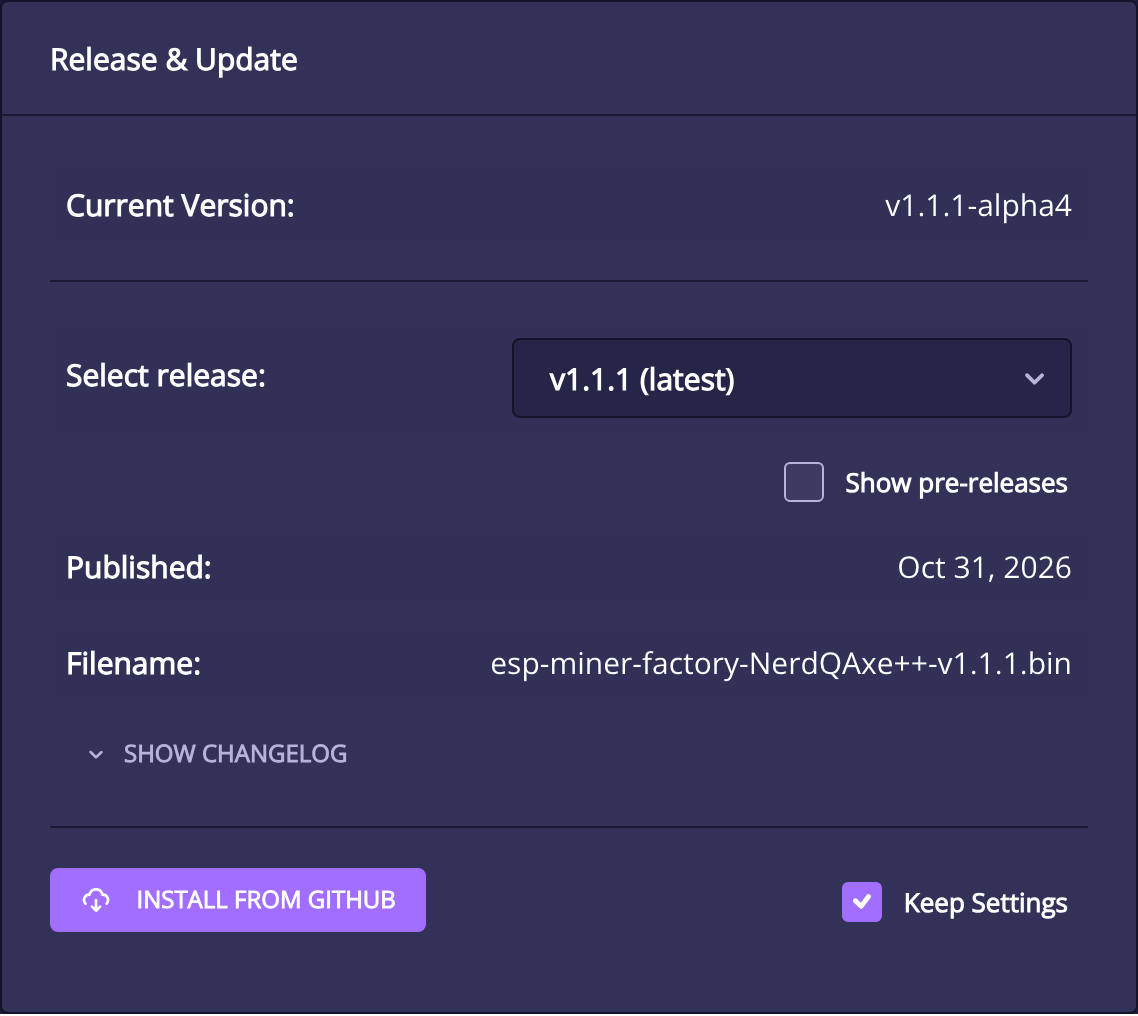
| Control | What it means |
|---|---|
| Current Version | The firmware currently running on the miner. |
| Select release | The release you are considering. The reviewed stable source lists the latest release first. |
| Show pre-releases | Includes test releases. Their availability does not make them the preferred choice for normal operation. |
| Published / Filename | Identifies the selected release date and expected factory image for the detected device target. Review the model in the filename. |
| Show Changelog | Opens the release’s change notes. This is a read-only action. |
| Keep Settings | Preserves configuration through the supported update path when checked. The interface warns that unchecking it resets configuration to defaults. |
| Install from GitHub | Starts a real download-and-flash process. It is not a version-information check. |
Before an update
- Confirm the exact device model and review the release notes for board-specific requirements.
- Record your Wi-Fi, pool, fan, monitoring, and security configuration privately. Check the Keep Settings option instead of assuming it is selected.
- Use stable power and a reliable network. Do not interrupt flashing or deliberately restart during the write.
- After the update and reboot, confirm the reported version, local address, pool connection, accepted shares, and cooling behavior.
An update interrupts mining. Keeping settings preserves configuration through that supported path; it is not a guarantee that every older configuration behaves identically after every release. Follow any migration notes.
Firmware versus website files
The miner runs both firmware and web-interface assets. Some advanced or legacy update views expose separate manual firmware and WWW uploads. An unmatched pair can produce stale labels, missing controls, or a version-mismatch warning even when mining continues.
Use the matching files and instructions from the same intended release. Do not upload a factory image into an arbitrary manual application slot, rename a different board’s binary to satisfy a filename check, or assume a frontend refresh updates the firmware. The integrated update path and web flasher help select the appropriate package when used for the correct target.
Our Solo Satoshi Web Flasher supports listed compatible devices. Its recovery or reset options can erase settings; read the selected option before proceeding. A failure to open a browser page is a reason to check networking and the local address before choosing an erase-and-flash recovery.
Important v1.1.1 capabilities and limits
The official v1.1.1 release notes document the NerdAxe Gaia target, an updated certificate store, V2 version-rolling compatibility checks, per-chip error telemetry, the found-block display fix, and optional all-time-stat reset. Treat the notes as the source of truth for that release, rather than assuming every change is visible in every screenshot.
Hardware-dependent options: Ethernet and CAN Fleet
W5500 Ethernet support
Nerd*OS v1.1.1 adds W5500 Ethernet HAT support for specified NerdQAxe-family configurations, including NerdQAxe+, NerdQAxe++, and NerdOCTAXE-Gamma, plus NerdAxe Gaia through its own interposer. The firmware probes for the hardware at boot; installing firmware does not add a physical Ethernet port.
The release notes identify incompatible pin-sharing combinations, including NerdOCTAXE-Gamma rev3.4 and NerdQX configurations with the temperature multiplexer, and boards fitted with a CAN HAT. Confirm the exact hardware combination before purchasing or connecting an accessory. These are conditional release capabilities; our screenshots show the Wi-Fi test device.
CAN Master Mode and CAN Fleet
Compatible CAN-extension hardware can expose CAN Master Mode under Misc Settings and a CAN Fleet page. This is distinct from ordinary Wi-Fi Swarm monitoring. It is for a supported controller/node arrangement on the CAN bus.
The source provides node discovery/status, per-node configuration, and actions such as restart, shutdown, and identify. These actions can change other nodes, so select the intended node and understand the fitted hardware before using them. The option is conditional on the detected extension and is absent on our test miner; there is no fabricated CAN screenshot in this guide.
Use the project’s CAN API reference and hardware documentation for node-specific fields and limits. A hidden menu entry does not establish that your board supports the accessory.
Operating questions and troubleshooting
For first-time Wi-Fi, router, IP-address, and pool-entry problems, use the setup troubleshooting section. The checks below focus on understanding the running interface.
| Question | What to check |
|---|---|
| Why is the chart empty or different on another browser? | Check hidden legend series and the selected time window, allow averages to warm up after startup, and remember that some chart preferences/history are browser-local. Compare with uptime and accepted shares before assuming downtime. |
| Why does the pool report a different hashrate? | Compare equivalent time windows. Pools estimate hashrate from qualifying shares, while the device reports its own telemetry. Pool difficulty and random share timing can change the short-term estimate. |
| Why is a pool blocked after enabling verification? | Read the verification reason. Confirm the username/address, pool payout model, and published fee against your selected mode and limit. |
| Why did my fan settings expose more controls? | Check Safe/Advanced/Pro level and the selected Manual/PID/Linked mode. Revealing controls is not evidence that a new value was saved. |
| Why is there a firmware/Web-UI mismatch warning? | Check whether matching firmware and website assets from the intended release were installed. Reload the page after a completed update; follow the release’s instructions if versions still disagree. |
| Why does OTP reject my code? | Check the authenticator entry, the current code’s time window, and device/time synchronization. Do not disable protection or erase configuration merely to test a browser refresh. |
| Why are InfluxDB or webhook notifications missing? | Check that the correct page was saved, the endpoint is reachable, and the server permissions/payload match the integration. Restart after InfluxDB changes. A test notification sends a real request. |
| Why did the miner restart? | Read Last Reset Reason and capture the relevant logs. Distinguish a deliberate restart or update from a watchdog, panic, or power-related reset before making hardware changes. |
If the device reports shutdown or unsafe temperatures, investigate the physical cooling and saved power settings before restarting. For model-specific limits or repeated faults, contact Solo Satoshi support with the full firmware version and a sanitized log excerpt.
Part 2: Inside Nerd*OS, technical deep dive
Technical deep dive: startup and task architecture
The operating screens above describe what to change. This reference explains how Nerd*OS v1.1.1 implements those functions. It applies to the shared Nerdaxe firmware architecture; board classes supply the hardware-specific behavior. File names below refer to the versioned source, not to settings a reader should edit on a running miner.
What happens between power-on and the first job?
| Stage | What happens and why it matters |
|---|---|
| 1. Runtime and persistent state | The entry point initializes watchdog handling, directs mbedTLS allocations toward PSRAM, initializes NVS, records the reset reason, and loads or migrates configuration. A memory-allocation or configuration problem can occur before any pool connection exists. |
| 2. Board selection | Compile-time target flags select a board class. That class supplies ASIC type/count, power and fan drivers, display behavior, defaults, and accessory capabilities. The firmware target is not merely a name painted on the dashboard. |
| 3. Board and accessory initialization | Saved settings are loaded and board peripherals initialized. Ethernet detection is arranged around the board’s shared pins; on supported add-ons it occurs before display initialization. |
| 4. Display and thermal tasks | The normal controller path creates its configured Stratum manager, then starts System/display and power-management tasks before network setup can block waiting for connectivity. This ordering allows the physical setup portal screen to appear while networking is incomplete. |
| 5. Network and operating mode | The normal controller path establishes networking. A supported CAN-slave path instead receives work from its master and does not start its own normal Wi-Fi/HTTP/Stratum stack. |
| 6. Mining services | On the normal path, a configured primary Stratum username gates the remaining mining startup. Alerting, OTP/time services, ASIC initialization, work generation, result processing, monitoring, and pool-management tasks are started as appropriate. |
This ordering helps explain why a display can be alive before mining begins. It also explains why entering an SSID alone is not a complete mining configuration. Diagnose the last successful stage instead of treating every zero-hashrate state as the same hardware fault.
FreeRTOS tasks and memory ownership
Nerd*OS separates time-sensitive ASIC-result handling and power management from networking, history, web requests, and optional exports. FreeRTOS tasks coordinate through mutexes, timers, and shared state rather than a browser page driving one large mining loop.
PSRAM provides room for larger buffers and many task stacks, but not every operation can safely run on a PSRAM-backed stack. The source deliberately creates configuration-flush and OTA tasks with normal task stacks because flash operations can disable cache access. A large PSRAM reading therefore does not mean internal SRAM is irrelevant.
Practical consequence: record both internal and external free-memory readings when investigating failures. Do not assume a browser reload fixes an allocation failure inside a firmware task.
Factory self-test is board-specific
The boot code has a conditional manufacturing/self-test path based on the saved flag and best-difficulty state. The reviewed NerdQAxe-family implementation checks detected ASIC count and reports power and core-voltage status. Its display explicitly says the test checks assembly and does not check hashrate. It is not a universal menu-based stress test or evidence that a particular overclock is stable.
Implementation: startup entry point, board abstraction, and NerdQAxe board and self-test implementation.
ASIC drivers: serial transport, initialization, and clocking
The browser never talks directly to an ASIC. A board class selects an ASIC driver, and the driver translates a generic mining job into that chip family’s command and result formats. The reviewed tree includes BM1366, BM1368, BM1370, and BM1373 implementations. Which one is used depends on the selected device target.
UART framing and chip addressing
The common serial layer initializes an ESP32 UART with 8 data bits, no parity, and one stop bit, then allows the driver to change baud rate during initialization. The checked source begins at 115,200 baud; the common maximum-baud command selects 1,000,000 baud. Those are firmware-to-ASIC transport details, not a requirement to set a browser or a USB console to that speed.
Outbound command packets include a 55 AA preamble, header, length, payload, and checksum. The shared sender uses a CRC5 for command packets and CRC16-FALSE for job packets. Model-specific drivers still determine register layouts, work encoding, and how returned job IDs are decoded.
As a concrete example, the BM1370 initialization counts the chips, assigns addresses across its address space, sets difficulty and version-rolling behavior, configures registers, and transitions to the requested clock. This example explains the implementation; it does not make BM1370 register values appropriate for a BM1373 miner.
Requested frequency versus a realizable PLL setting
The driver converts a requested MHz value into PLL divider settings. The common frequency routine searches permitted divider combinations and can reject a target for which it cannot find a suitable combination. A form accepting a number is therefore not proof that the hardware can generate it exactly or run it reliably.
The log distinguishes the requested value, selected hardware value, and error where provided. If a change produces a “PLL settings” error, investigate the target and model rather than repeatedly raising voltage. Voltage is controlled through the board’s regulator driver; it is not a substitute for a valid PLL configuration.
Separate regulator and sensor drivers
Board code also selects fan-controller, regulator, and temperature-sensor drivers. The source includes different power paths for board revisions, including a separate Revision 7 regulator implementation. This is why the shared UI can expose similar fields while different devices have different limits, fan labels, and telemetry availability.
Implementation: UART transport, common packet framing and PLL selection, BM1370 driver, and NerdQAxe++ board implementation.
Mining pipeline: from pool job to validated share
1. Build a job that belongs to a particular pool
For Stratum V1, the pool supplies the job identifier, previous-block hash, coinbase parts, Merkle branches, block version, compact network target, time, and job-cleaning instruction. Subscription data also supplies extranonce information. The job builder refuses to construct work without the required notify and subscription fields.
The firmware forms the coinbase from coinbase1 + extranonce1 + extranonce2 + coinbase2, hashes it, and combines the supplied Merkle branches to obtain a Merkle root. The chip job is then built from the block-header data and the negotiated version mask. Extranonce2 provides additional search space when a new header is needed.
The same generic work-generation loop can use a protocol-specific builder for V2. It does not assume that V2 is a line of V1 JSON with a different port.
2. Schedule work and retain its identity
A FreeRTOS timer and condition variable wake the job-generation task. The configured Job Interval sets the normal timer period; new-work events can also trigger it. The selected pool manager decides which pool supplies the next usable job. The task sets an ASIC return-difficulty mask, sends work, and stores the resulting job by the ASIC’s decoded job ID.
The active-job store has 128 slots in the reviewed implementation. Each stored job retains its pool ID, original pool job ID, extranonce2, time, base version, and pool difficulty. Result processing takes a protected clone so it can examine a consistent job while another task updates or replaces work.
When clean work or a disconnect invalidates a pool’s jobs, that pool’s stale entries are removed. A later chip result without a matching stored job cannot be reconstructed as an ordinary current share and is skipped. This job-ID bookkeeping is essential when two pools or recently replaced jobs coexist.
3. Reconstruct and check the ASIC result
The result task distinguishes mining results from register replies used for temperature and counters. For a mining result it recovers the stored job, combines the rolled version with the base version, and calculates the returned nonce’s difficulty.
Two thresholds matter: the ASIC return mask limits how many candidate results reach the controller, while the pool share target determines what the pool expects to receive. They are not Bitcoin network difficulty, and they need not be identical.
| Target | Purpose |
|---|---|
| ASIC return threshold | Controls which candidate nonces the chip reports to the controller. It limits transport and processing load. |
| Pool share target | Determines whether a returned candidate qualifies for submission to that pool. Pools can alter it through their protocol. |
| Bitcoin network target | Defines the difficulty of a block candidate for the current chain. Lowering a share target does not lower this consensus target. |
4. Submit, account, and detect duplicates
A qualifying result is submitted with the original pool identity and required job fields. The pool response then drives accepted/rejected accounting. The controller also updates best-difficulty and candidate-block checks; those do not substitute for independent chain acceptance.
The reviewed result path keeps a short recent set of nonce/version pairs to detect duplicate hardware responses. It counts them separately. The implementation still sends a duplicate that meets the pool target so the pool can reject and account for it. This is why “duplicate hardware nonce” and “rejected share” can describe related events without being the same counter.
Implementation: protocol-specific job builders and scheduler, active-job ownership, result verification and submission, and header and nonce calculations.
Stratum internals: negotiation, failover, and dual-pool scheduling
V1 negotiation and changing work
V1 uses JSON messages over the selected TCP or TLS connection. Subscription establishes extranonce data; authorization identifies the account or receiving-address worker; configuration negotiates features such as version rolling. Job notifications, difficulty changes, and extranonce changes update the state from which ASIC work is built.
In the reviewed V1 job builder, a newly announced share difficulty becomes the active job difficulty when the corresponding new job is installed. A pending extranonce switch is also activated with the next notify. This prevents an arbitrary mixture of old job data and new subscription parameters.
TCP keepalive and reconnect logic concern connection health. They do not establish valid job data or successful authorization. A socket can be connected while the miner is still waiting for a usable subscription response or job.
What failover actually does
The failover manager prefers the primary pool. A connected, usable primary causes the fallback connection and its reconnect timer to be stopped. If the primary disconnects, the fallback reconnect timer is allowed to run, and active work switches once the fallback actually connects. The primary remains eligible to reconnect and can reclaim the active role when it returns.
Coinbase-enforcement blocks are considered separately from ordinary connectivity. A blocked pool is not allowed to reconnect until that policy state is cleared. Repeatedly rebooting without correcting the payout configuration is therefore not a meaningful verification fix.
How dual-pool balance is implemented
When both pools have valid, unblocked work, the dual manager uses an accumulated-error scheduling method to choose primary or secondary jobs according to the balance percentage. For a 70/30 selection, secondary pressure accumulates until it receives a turn, then the accumulator is reduced.
If only one pool has valid work, it is selected and accumulated scheduling drift is reset. This prevents the miner from treating unavailable work as a backlog that must later be repaid. The displayed per-pool hashrate allocation is derived from active balance and device hashrate; it is not an independent physical hashrate meter for each connection.
Dual mode also chooses a suitable ASIC return-difficulty mask using both pool difficulties and board limits. A “share too small” or pool-difficulty warning is about that relationship, not a change in Bitcoin’s network target.
V2 is an encrypted, framed protocol
The reviewed V2 transport performs a Noise NX handshake and establishes ChaCha20-Poly1305 transport protection. Above that transport, the client negotiates SetupConnection and a mining channel, handles new jobs, previous-hash changes and targets, and processes share-success or share-error replies.
Authority-key authentication is separate from merely establishing an encrypted transport. In v1.1.1, the connection setup explicitly requires version rolling because the supported ASIC path depends on it. A server refusing it is disconnected rather than accepted as compatible.
These are the implemented transport and mining-channel features. They do not demonstrate that the device implements every part of the wider V2 specification, such as independent transaction selection or a full Job Declaration deployment.
Implementation: failover state machine, dual-pool scheduling, V2 negotiation and messages, and Noise transport.
Telemetry internals: hardware counters, averages, and errors
Why one miner can have several legitimate hashrate readings
Nerd*OS can report board-capability-dependent hardware-counter telemetry as well as share-derived operating history. The expected hashrate is a separate model calculation. Pool-side hashrate is another estimate based on the shares the pool receives. They measure different things and use different windows.
For ASIC-counter-capable boards, the monitor reads per-chip counters. The first response establishes a baseline; a later response supplies both a counter difference and an elapsed time. The source converts the counter delta using its 2^32 scaling and elapsed microseconds into GH/s. It then aggregates chips and applies filtering/smoothing before publishing the result.
A missing chip response, restart, startup baseline, or short observation interval can therefore affect an early reading. It is more useful to compare a settled series and per-chip data than to declare a fault from the first sample.
Hardware-error rate is not rejected-share rate
The v1.1.1 monitor reads a separate hardware-error counter and derives per-chip error hashrate from successive responses. The API exposes valid hashrate and error hashrate in GH/s. Their sum describes total reported chip work in that representation; an error rate must be calculated using the appropriate valid-plus-error denominator.
Pool rejection percentage instead concerns submitted shares and the pool’s response. It can include stale work or an authentication-related problem without being a direct measure of ASIC arithmetic errors. Do not relabel one percentage as the other in an external dashboard.
Worked example: reading API fields correctly
The following is an illustrative subset, not a reading from the live test miner:
{
  "performance": {
    "hashRate": 1200,
    "chips": [{ "hashRate": 1200, "errorHashRate": 12 }],
    "sharesAccepted": 1000,
    "sharesRejected": 2
  }
}
In this example, chip error work is 12 ÷ (1,200 + 12), approximately 0.99%. A pool-share rejection calculation using those two share counters is 2 ÷ (1,000 + 2), approximately 0.20%. The numbers are different because the populations and events are different.
The API values must also be interpreted in their current pool mode. In failover, the documented session counters are shared and reported on the active entry; in dual mode, pool-specific counters are available. Preserve array order and the active/usingFallback flags rather than simply adding every field from both entries.
History is not a wall-power meter or an audit log
History averages and chart smoothing help display trends. They do not add PSU conversion losses to device power or prove that a missing browser sample was a mining outage. Keep original units, timestamps, and measurement boundaries when exporting data.
Implementation: counter collection and smoothing, history and averaging, and dashboard field definitions.
Configuration storage: NVS, migration, and persistence
Persistent device configuration versus browser preferences
The reviewed configuration layer holds a flat JSON document in memory and persists it as the json_cfg blob in the main NVS namespace. NVS is the ESP32’s non-volatile storage, separate from the browser and from the web-interface image.
At startup, the code tries to load that document. If the blob is missing or cannot be decoded, it attempts migration from older individual NVS keys. The migration copies keys that exist and leaves missing values absent so board/runtime defaults can still be used. This does not mean that arbitrary cross-version downgrades or corrupted flash are guaranteed to recover every setting.
Most runtime accessors read and update the in-memory document under a mutex. A dedicated internal-stack task batches requested writes and commits the blob to NVS. The reviewed batching delay is about 100 ms after a flush signal. This is an implementation detail, not a reason to remove power immediately after submitting a form.
What the settings endpoint applies
The v2 settings handler validates the supplied field types, updates the relevant configuration, requests a flush, and reloads the board, fan controller, System, and Stratum settings. Some running tasks then apply updated values. Other changes require restart because they alter startup state or the kind of manager instantiated at boot.
The frontend’s reboot-required set includes network identity/credentials, screen orientation, fan polarity, suggested difficulty, keepalive, CAN master mode, pool mode, and protocol selections in the reviewed version. Its notice is therefore tied to the changed fields, not a claim that every single form value is live-applied.
| State | Persistence behavior |
|---|---|
| Wi-Fi, pool, fan, display, and integration configuration | Stored by the device configuration layer when saved. An ordinary reboot is different from erasing NVS. |
| All-time best difficulty and found-block count | Explicit persistent counters in the reviewed configuration code. The all-time reset option deliberately changes those records. |
| Session statistics | Runtime/session-scoped values. Do not treat a session reset or reconnect as proof that all persistent configuration was erased. |
| Theme, chart preferences, Swarm list, and interface level | Frontend/browser-local state in the relevant components. Another browser or cleared site data can have a different view. |
| OTP browser trust | A separate session mechanism with expiry. It is not interchangeable with a saved theme or a permanent exemption from OTP. |
| Update with Keep Settings unchecked | The factory-update path explicitly attempts to erase the NVS partition. This can also remove persistent statistics and OTP configuration stored in NVS. It is different from simply replacing web-interface files. |
Why screenshots are not a configuration backup
A screenshot cannot restore masked passwords, tokens, OTP enrollment, or every hidden field. Keep sensitive settings in a suitable private record and follow the intended release’s migration procedure. Do not publish a raw configuration or memory dump as a convenient support attachment.
Implementation: JSON-backed NVS storage and migration, settings validation and reload, and frontend restart detection.
Thermal control internals and firmware shutdown behavior
Power and fan control operate in the firmware even when no browser is open. The power-management task reads electrical and thermal data, applies supported ASIC settings, and calls the fan controller. It does not use a JavaScript chart as its feedback loop.
Control input and protection input are deliberately different
For independent channels, the ASIC channel uses the maximum applicable chip temperature, while the regulator channel uses the regulator temperature. Linked mode, or the single-fan maximum-temperature option, can make the primary PID controller respond to the higher of those values.
The overheat checks still use the original per-channel temperatures. Linking two fans does not merge all protection thresholds into one averaged temperature. The controller checks the configured threshold and can force a channel to full output when it reports overheat.
When either channel reports overheat, the power-management code records an ASIC or regulator temperature fault and requests zero output voltage from the board’s buck regulator. This is why a reachable controller can coexist with stopped ASIC hashing. Repeatedly raising a threshold or rebooting without fixing the thermal cause is not a useful diagnostic method.
Changing clocks and voltage at runtime
The power-management path checks for requested voltage, ASIC-frequency, and version-rolling-frequency changes only after the board is initialized and while it is not shut down. This guards against treating a saved number as an immediate successful hardware transition.
The board’s driver performs the actual operation and can report a failure, such as no suitable PLL setting. Compare the request, logs, measured core voltage, power, temperatures, and settled work rate rather than assuming one successful form save proves all hardware changes succeeded.
PID transfer and monitoring exports
The controller continues its PID computation to support smoother transfers between control modes. This implementation detail does not make arbitrary PID coefficients appropriate for every fan and heatsink.
InfluxDB exports take a telemetry snapshot and perform the blocking write outside the power-management lock. That design avoids holding thermal control behind a slow database operation. It does not guarantee that every external service or network failure is harmless to every firmware subsystem.
Implementation: channel control and overheat detection, regulator and ASIC control, and monitoring snapshot and export.
Update internals: partitions, firmware, website, and recovery
The repository’s partition table separates NVS, radio calibration data, a factory application, the www web-assets partition, OTA application slots, OTA selection data, and a diagnostic core-dump area. The checked layout defines a 3 MiB WWW partition and 4 MiB application slots. These are source-layout details, not safe instructions for manually writing offsets to every miner.
What the integrated factory-image updater does
- Resolves the download URL and checks that the factory-image stream is large enough for the expected regions when its length is known.
- Shuts down the ASIC power path before flash operations, because the normal power-management/PID assumptions cannot be relied on during that update operation.
- Writes the application through ESP-IDF’s OTA path, finishes image validation, and selects the new boot partition.
- Buffers the expected WWW image in PSRAM, erases the WWW partition, and writes the web assets.
- If Keep Settings is off, attempts NVS erasure, then proceeds to the reboot phase.
The application and website are separate writes. A firmware write can finish before a later website download or write fails. The source explicitly handles that case by restarting, which is one reason a version-mismatch warning can exist even when the application boots.
Why an OTA slot is not an unconditional rollback guarantee
ESP-IDF provides application-slot and boot-selection mechanisms, but an update here also modifies the shared WWW partition and can optionally erase configuration. Do not promise that every failed update automatically restores a fully matched firmware, website, and settings snapshot. That would be stronger than the reviewed process guarantees.
Likewise, image-format validation is not identical to verifying the publisher’s identity. Use the intended project release, the correct target, and any checksums or verification information supplied by that release. Do not describe every arbitrary compatible-looking binary as a verified upstream build.
Factory images, application images, and WWW assets
A factory package contains multiple regions used by the integrated updater or an appropriate flasher. A manual application update expects the application format for its endpoint. WWW upload updates web assets. These are different file types even when all came from the same release page.
When diagnosing an update, record the selected filename, installed version, observed update stage, and whether Keep Settings was selected. Protect power during writing. Use recovery instructions for the exact target rather than applying a copied flash address or erasing configuration as the first step in a network problem.
Implementation: partition layout, integrated updater, and manual update handlers.
REST API, WebSocket, authentication, and diagnostic examples
Endpoint and telemetry reference
The official Nerd*OS API reference describes the versioned JSON interface. These read-only endpoints are useful for dashboards and troubleshooting:
| Endpoint | Purpose |
|---|---|
GET /api/v2/identify |
Lightweight device identification and capability flags, including whether conditional features are available. |
GET /api/v2/system |
Model, version, uptime, reset reason, networking, and memory. The documented frontend polls System on a five-second cycle. |
GET /api/v2/dashboard |
Mining, pool, power, thermal, and optional history data. The documented dashboard polling cycle is two seconds. |
GET /api/v2/settings |
Current configuration, including pool and fan structures. Treat responses as private because they contain configuration and network details. |
GET /api/v2/alert |
Alert and display-notification configuration. |
GET /api/v2/influx |
InfluxDB integration configuration. |
GET /api/v2/otp/status |
OTP status for the local security interface. |
GET /api/v2/wifi/scan |
Wi-Fi scan results for the supported setup workflow. This is not a scan for mining devices or a replacement for Swarm. |
GET /api/v2/can/nodes |
Supported CAN-node overview when the relevant hardware/service is available. |
WebSocket /api/ws |
Live log stream used by the System log view. |
For example, open http://YOUR_MINER_IP/api/v2/system using your own local address. Older integrations may use /api/system/info; new integrations should check the documented versioned API rather than assuming an old response structure is permanent.
The dashboard API can request history with timestamp and window parameters. In v1.1.1, per-chip entries distinguish valid hashrate from error hashrate. These fields support analysis; they should not be silently converted into a pool rejection percentage.
Changing state through the API
Settings updates, firmware installation, session-stat resets, OTP enrollment, webhook tests, and remote device actions are state-changing operations. The documented interface uses specific PATCH or POST endpoints, with OTP/session headers when protection is enabled. Follow the official schema rather than copying an old legacy example or sending a complete unreviewed configuration object.
Keep API access local and avoid aggressive polling. An API token, OTP session, or webhook secret belongs in private configuration, not in public article code, browser screenshots, or a shared log file.
Read-only local diagnostics with curl
Replace YOUR_MINER_IP with your miner’s local address. These examples request telemetry; they do not change settings or restart the device:
curl --fail --max-time 5 http://YOUR_MINER_IP/api/v2/identify
curl --fail --max-time 5 http://YOUR_MINER_IP/api/v2/system
curl --fail --max-time 5 http://YOUR_MINER_IP/api/v2/dashboard
Use the response status as well as the body. A successful HTTP response with no usable pool job still does not establish mining success. A timeout can be a network or service problem; it does not by itself identify a failed ASIC. Avoid repeatedly polling large configuration or history responses when a lightweight endpoint answers the question.
State-changing endpoint map
These routes are a technical reference, not actions performed while preparing this guide. Use the current release schema and endpoint-specific authentication before sending a mutation.
| Method and route | Effect |
|---|---|
PATCH /api/v2/settings |
Updates the supplied supported settings fields. Numeric fields have typed validation; the endpoint does not infer that an arbitrary value is safe for the board. |
PATCH /api/v2/influx |
Changes the database integration configuration. The UI requires restart for the new settings to take effect. |
PATCH /api/v2/alert |
Updates supported webhook or display-alert configuration. |
POST /api/v2/alert/test |
Sends a real notification to the configured receiver. |
POST /api/v2/otp |
Begins physical-display OTP enrollment when OTP is not already enabled. |
PATCH /api/v2/otp |
Completes enrollment or disables OTP using the required current code. |
POST /api/v2/otp/session |
Validates a code and creates a time-limited browser/API session token. |
POST /api/system/restart |
Restarts the controller. Review the endpoint-specific authentication exception below. |
POST /api/system/shutdown |
Requests firmware shutdown of mining hardware. |
POST /api/system/reset-stats |
Resets session statistics. The documented all-time option also clears persistent best-difficulty and found-block records. |
POST /api/system/OTA and /api/system/OTAWWW |
Manual application and website uploads. The expected binary formats are different. |
POST /api/system/OTA/github |
Triggers the integrated download/update path; GET on the same route reads its progress. |
PATCH /api/v2/can/nodes/{id} |
Updates a supported CAN node. Node action routes and deletion operate on the selected node/list entry, not the ordinary Wi-Fi Swarm list. |
For example, the Settings API uses fields such as hostname, frequency, coreVoltage, pools[], and fans[]. A pool array is configuration data, not a list of live TCP sockets to copy from a dashboard response. Send only the fields you intend to change and retain the documented primary/secondary ordering.
OTP headers and endpoint-specific behavior
The documented mutation interface uses X-TOTP or X-OTP-Session where that endpoint enforces protection. The session-creation handler validates a current OTP before minting a time-limited session. Never place those values in public URLs, screenshots, or example commands.
Check actual handler behavior rather than assuming all actions have identical protection. In the reviewed v1.1.1 restart handler, the local-network check is active while the OTP-validation block is commented out. This is an important reason to retain the local-network boundary and not describe OTP as comprehensive authentication for every possible endpoint.
WebSocket logs are a live stream
The System view opens /api/ws and receives log messages as they are emitted. The browser maintains and filters its display buffer. Pausing scrolling is a presentation action, not a request to pause the miner’s logging or ASIC task. Downloaded logs represent what that capture received, not a guaranteed boot-to-present archive.
A diagnostic sequence that separates the layers
| Observed state | Next useful evidence |
|---|---|
| Local page will not open | Read the display/router IP, confirm local reachability, then test Identify or System. Do not diagnose the ASIC chain from a browser-routing failure. |
| System is reachable but no pool work arrives | Inspect the selected pool, protocol, host/port, authorization response, and connection log. A valid IP address does not prove the pool accepted the worker. |
| Pool is connected but no usable jobs are built | Look for subscription/extranonce and job messages. The scheduler requires valid job state before dispatching work. |
| Jobs are dispatched but a chip is missing | Compare detected ASIC count, per-chip telemetry, and driver initialization messages. Use the exact board target and physical support process. |
| Hashing stops while the UI stays reachable | Check shutdown/board-error state, thermal readings, and last reset reason before altering clock or power settings. |
| Shares are accepted but the graph looks wrong | Compare API counters, time windows, and browser-local chart state before reflashing otherwise functioning firmware. |
Implementation: restart handler, OTP and session handlers, and complete API schemas.
Building Nerd*OS: targets, dependencies, and reproducibility
The source is distributed under the repository’s GNU GPL v3 license and credits the ESP-Miner/Bitaxe and NerdAxe development lineage. The firmware is an ESP-IDF application, while the web interface is an Angular application with its own dependency/build chain. The v1.1.1 release uses ESP-IDF 5.3.6.
Choose a release and target before choosing a compiler command
A reproducible starting point is a named release tag, its corresponding submodules, the toolchain specified by that release, and the correct board target. A current development checkout can contain changes that are absent from the release discussed in this guide.
The project documents Docker and manual build paths. Follow those versioned instructions rather than mixing an old copied command, a different ESP-IDF major version, and an arbitrary current dependency lockfile. The configuration example and build/merge scripts are development assets, not a public place to store real Wi-Fi and pool credentials.
Firmware build and frontend build are related artifacts
The application binary and WWW image must come from the intended compatible build. Changing a UI label alone does not change a backend handler, and adding a translation string does not necessarily implement a working feature. This distinction is why this guide checks actual forms and code paths instead of treating every source-tree label as a visible control.
Release packages include board-specific factory images and application assets. Confirm target names against the official release. A miner recognizing its ASIC model does not prove that a different board’s pin mapping, regulator driver, display, or accessory configuration is compatible.
Diagnostic builds and matching symbols
Core dumps are an opt-in diagnostic feature, not normal stable-release behavior. Decoding a stored panic requires the exact matching ELF and appropriate tools; an ELF from a similarly named later release is not an equivalent substitute. Raw dumps can include secrets and belong in a private support workflow.
For routine bug reports, a full version string, reset reason, configuration context, and sanitized relevant log are usually a better starting point than a publicly uploaded memory image. Report the smallest reproducible behavior and distinguish what you observed from your proposed cause.
Implementation and build instructions: versioned project README, firmware build definition, and frontend build dependencies.
Frequently asked questions
What is NerdOS?
Does NerdOS need an app or cloud account?
Which Nerdaxe models does this guide cover?
Do I need to keep the dashboard open for mining?
What is the difference between Save and Restart?
Does dual-pool mode double the hashrate?
Is best difficulty the same as finding a Bitcoin block?
Does Coinbase Verification refer to the Coinbase exchange?
Should I use manual or PID fan control?
Does OTP encrypt the NerdOS web interface?
Why are some settings missing from my miner?
Does a firmware update preserve my settings?
Are Swarm and CAN Fleet the same thing?
Where should I start if Wi-Fi or pool setup is not working?
Sources, version notes, and further reading
This guide was checked on November 8, 2026, against our live NerdQaxe++ interface, the Nerd*OS v1.1.1 release, and its source. Hardware-dependent and release-specific features are identified above. The editorial hero is an AI-generated illustration based on the dashboard; the instructional interface images are direct device captures with private values replaced.